Physical Address
304 North Cardinal St.
Dorchester Center, MA 02124
Physical Address
304 North Cardinal St.
Dorchester Center, MA 02124

→ Article about tracking objects with YOLO and tracking algorithms (ByteTrack & BoT-SORT) in Python.
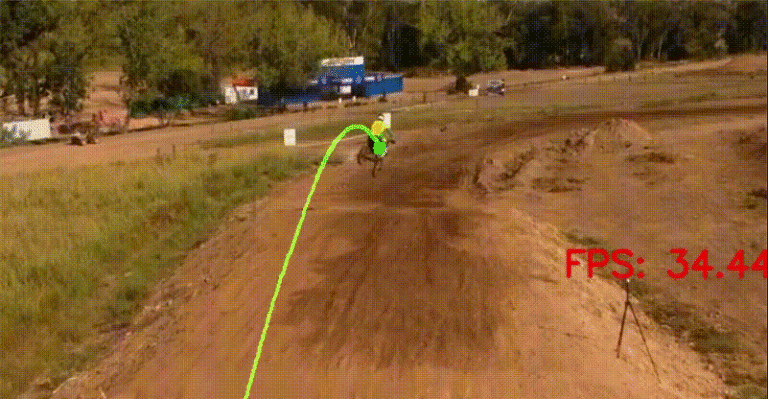
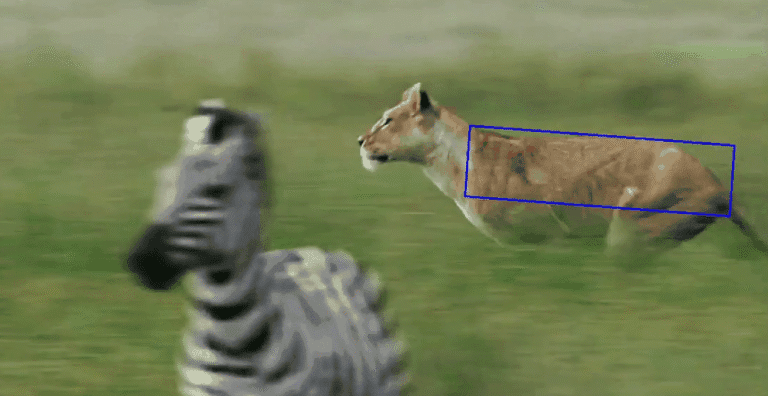
Object tracking is different from object detection; you have to assign a label to each detected object, otherwise there will only be detected boxes on the screen. For assigning labels to objects, you have to check similarity between objects for each frame, like color, shape, texture, and IoU (Intersection over Union).
So, after detecting objects with object detection models, you should use separate tracking algorithms, and in this article I will show you how to combine YOLO object detection models with ByteTrack and BoT-SORT tracking algorithms.
Also, I have a YouTube video about this article, you can watch it.
You can see the table below; these are the most well-known trackers, and now we will combine pretrained YOLO models with ByteTrack and BoT-SORT.
Thanks to Ultralytics, the implementation is quite easy. Ultralytics has support for both tracking algorithms, and configuration files are ready to use. By using pretrained YOLO models, you don’t have to train any model, and by combining YOLO object detection models with these tracking algorithms, you can track objects with a few lines.
| Tracker | Based on | Key New Idea |
| SORT | N/A (baseline) | Kalman + IoU association |
| Deep SORT | SORT | Appearance embedding for ID consistency |
| ByteTrack | SORT | Two-stage association: high & low confidence detections |
| BoT-SORT | Deep SORT | Better ReID + occlusion-aware association |
ByteTrack is inspired by the SORT algorithm, and BoT-SORT is inspired by the Deep SORT algorithm.
ByteTrack basically gives attention to low-confidence detections as well. This helps to identify occluded objects, because most of the time occluded objects have low confidence.
BoT-SORT is more focused on object motion, it has an improved Kalman filter to estimate motion, and it has better performance when the camera is moving.
You can see the FPS comparison in the chart below. Keep in mind that there are YOLO models running on the GPU as well. These FPS values will change depending on your hardware, but we can clearly say that ByteTrack has a significant advantage in terms of FPS.

You can directly use pretrained YOLO models; you don’t have to prepare a dataset or train the model. Pretrained models are already trained on huge datasets, but of course they have a finite number of classes. If you want to detect specific objects (for example, bird species, plane types, etc.), you need to train a model from scratch. But no worries, I have an article about it as well; you can read it.
I explained everything in detail with comment lines. The main logic is to detect objects with a YOLO object detection model and use tracking algorithms to assign IDs to each detected object.
You can install necessary libraries from terminal like below.
# YOLO from ultralytics (object detection & tracking)
pip install ultralytics        # https://pypi.org/project/ultralytics/

# OpenCV for video/image processing
pip install opencv-python      # https://pypi.org/project/opencv-python/

# PyTorch CPU version (works without GPU)
pip install torch torchvision torchaudio --index-url https://download.pytorch.org/whl/cpu

# If you have a GPU and want GPU acceleration, uncomment the next line:
# pip install torch torchvision torchaudio --index-url https://download.pytorch.org/whl/cu121
If you encounter any issues installing PyTorch with GPU support, I have an article about it; you can read it.
from ultralytics import YOLO
import cv2
import time
import torch
import subprocess
import shutil
import os

print(torch.__version__) # my version --> 2.2.0+cu121
print(torch.cuda.is_available()) # True (GPU is available)
If you have a different YOLO model, you need to change the path. The yolov8n.pt model is the lightest YOLO model. If you have powerful hardware, you can use yolov8m.pt or yolov8l.pt.
model = YOLO('yolov8n.pt')
For testing different trackers, you can change the tracker_choice parameter.
def main(tracker_choice='bytetrack'):
    input_path = 'videos/plane_video.mp4'  # Your video file path

    # Validate tracker choice
    if tracker_choice not in ['botsort', 'bytetrack']:
        print(f"Invalid tracker choice '{tracker_choice}', defaulting to 'bytetrack'")
        tracker_choice = 'bytetrack'

    # Load the pretrained YOLOv8 model
    model = YOLO('yolov8n.pt')

    # Check if CUDA is available and set device accordingly
    device = 'cuda' if torch.cuda.is_available() else 'cpu'
    model.to(device)
    print(f"Using device: {device}")

    # Load the video file
    cap = cv2.VideoCapture(input_path)
    if not cap.isOpened():
        print(f"Error opening video file {input_path}")
        return

    # Initialize variables for FPS calculation
    prev_time = 0

    """
    Parameters of track method:
    source: str - path to video file or camera index
    tracker: str - tracker configuration file (e.g., 'bytetrack.yaml' or 'botsort.yaml')
    conf: float - confidence threshold for detections
    stream: bool - if True, yields frames one by one for real-time processing,
                if False, processes the entire video at once
    """
    results = model.track(
        source=input_path, # path to video file
        tracker=f'{tracker_choice}.yaml',  # 'bytetrack.yaml' or 'botsort.yaml'
        conf=0.3,   # confidence threshold
        stream=True # set it to True for continuous video processing
    )

    # loop through the results
    for frame_result in results:
        # Get the original frame
        img = frame_result.orig_img.copy()

        # Calculate FPS (fall back to input_fps until prev_time set)
        curr_time = time.time()
        fps = 1 / (curr_time - prev_time) if prev_time != 0 else cap.get(cv2.CAP_PROP_FPS)
        prev_time = curr_time

        # loop through the detected boxes and draw them on the frame
        for box in frame_result.boxes:
            # Extract bounding box coordinates
            x1, y1, x2, y2 = map(int, box.xyxy.cpu().numpy()[0])
            # Extract confidence
            conf = box.conf.cpu().item()
            # Extract class
            cls = int(box.cls.cpu().item())
            # Extract track ID
            track_id = int(box.id.cpu().item()) if box.id is not None else -1

            """
            model.names is a dictionary mapping class indices to class names.
            {0: 'person',
            1: 'bicycle',
            2: 'car',
            3: 'motorcycle',
            ...,
            }
            """
            class_name = model.names[cls]

            # Draw bounding box and label
            cv2.rectangle(img, (x1, y1), (x2, y2), (0, 255, 0), 2)
            label = f"{class_name} ID:{track_id} {conf:.2f}"
            cv2.putText(img, label, (x1, y1 - 10),
                        cv2.FONT_HERSHEY_SIMPLEX, 0.5, (0, 255, 0), 2)

        # Display tracker name and FPS on top-left corner
        cv2.putText(img, f"Tracker: {tracker_choice}", (10, 70),
                    cv2.FONT_HERSHEY_SIMPLEX, 2, (255, 0, 0), 3)
        cv2.putText(img, f"FPS: {fps:.2f}", (10, 150),
                    cv2.FONT_HERSHEY_SIMPLEX, 2, (255, 0, 0), 3)

        # Display the frame with detections
        cv2.imshow('YOLOv8 Tracking', img)

        if cv2.waitKey(1) & 0xFF == ord('q'):
            break

    cap.release()
    cv2.destroyAllWindows()

if __name__ == '__main__':
    """ There are two trackers available:
        1. ByteTrack (bytetrack.yaml)
        2. Sort (botsort.yaml)
    """
    main(tracker_choice='bytetrack')