Physical Address
304 North Cardinal St.
Dorchester Center, MA 02124
Physical Address
304 North Cardinal St.
Dorchester Center, MA 02124
“a tiny vision language model that kicks ass and runs anywhere“, that is exactly how the creators of Moondream defined it. They are not wrong, by the way, and while you are reading this article, I bet you will agree with me. It is a lightweight vision-language model that can understand images and explain the context. You can ask questions to the model like “what color is this cat?”, and it will give you an answer. It can detect objects with text prompts just like Grounding DINO. There are a lot more things that Moondream can do, and in this article I will show you the installation and how you can run different demos.
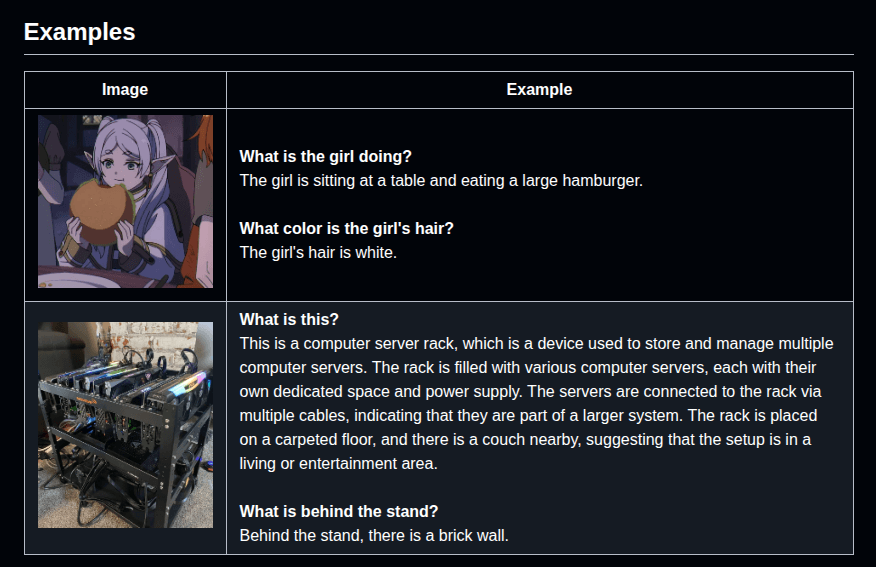
I will show you 3 different demos, one by one:
There are other VLMs (vision language models) out there like LLaVA, CogVLM, or Yi-VL. However, these are heavy models. Running them without a GPU is impossible(as much as I know). Moondream has a distinct advantage over these advanced VLMs. As the authors defined, Moondream is a lightweight model. You don’t need to have powerful GPUs to run it. Actually, you don’t even have a GPU, unlike other VLMs. Moondream can run on a CPU as well, and this is not usual. So, if you don’t have enough GPU power on your system, and you want to run some VLM locally, Moondream might be a solid choice for you.
Also, I have a YouTube video about this article, you can watch it.
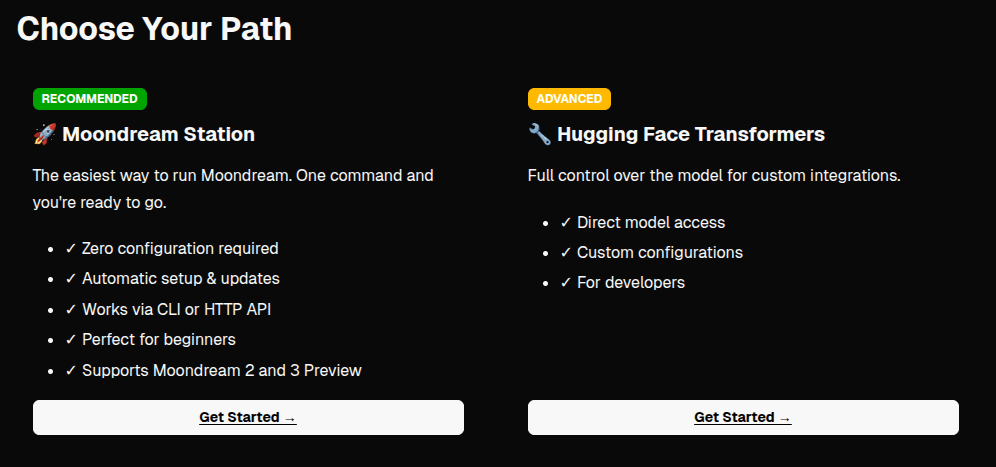
I have good news for you. There are three different installation options, and the first one is not even an installation 🙂
I tested these 3 methods(on ubuntu 22.04), and all of them worked. If you just want to test moondream, you can follow the first step. But if you want to run moondream locally, you can follow step 2 or 3. If you follow step 3, it will work way faster than step 2. But of course, the installation will be longer, and you might get some errors in some parts related to CUDA.
Go to the moondream website(link), sign up, and then you can create your API key. It should take about 1–2 minutes.
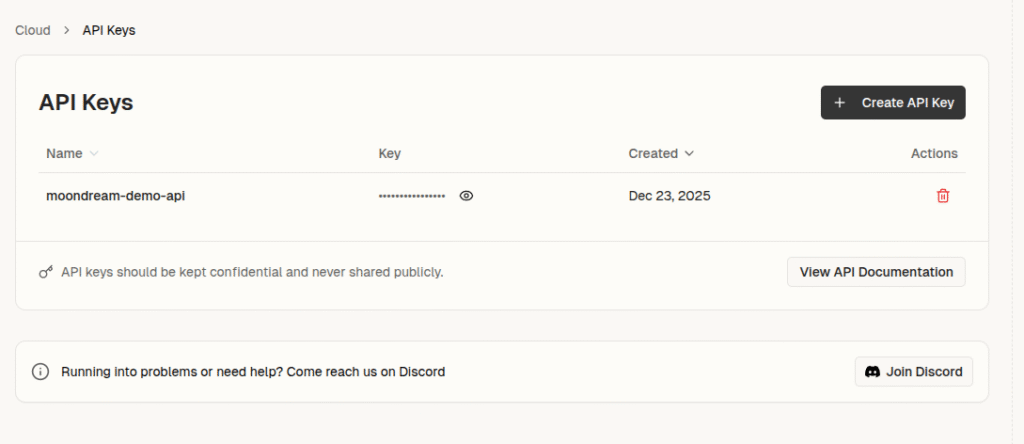
After you create an API key, you can install the moondream SDK using pip:
pip install moondream
You are ready to go. I will show you an example code for an API call after I show all installation methods.
Let’s say you don’t have a GPU, but you want to run models locally. Then, you only need to install a few libraries:
pip install "transformers>=4.51.1" "torch>=2.7.0" "accelerate>=1.10.0" "Pillow>=11.0.0"
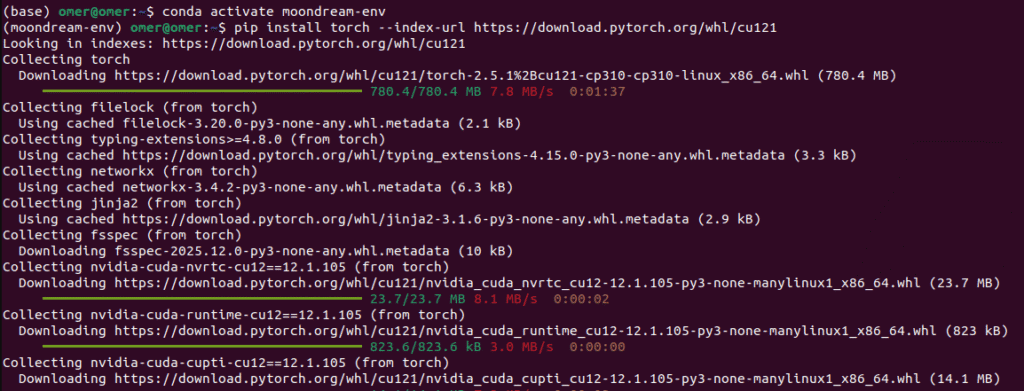
First, you need to install PyTorch with GPU support:
pip install torch --index-url https://download.pytorch.org/whl/cu121
If you get any errors, I have an article fully focused on how to create a GPU-supported PyTorch environment, you can read it(link). Depending on your GPU, you might need to change CUDA versions.
After you installed PyTorch, there are a few more libraries:
pip install "transformers>=4.51.1" "accelerate>=1.10.0" "Pillow>=11.0.0"
Okay, the installation part is finished. Now I will show you the 3 different demos that I talked about in the beginning, let’s start 🙂
Okay, now we will create questions, and expect the model to generate logical answers. First, let me show you how to make an API call. Don’t forget to change the api_key, and the path to the image. There are few parameters, and we will use this parameters every time model runs:
import moondream as md
from PIL import Image

# change api_key
model = md.vl(api_key=api_key)

# Load an image
image = Image.open("motorcycle.jpg")

# Ask a question
result = model.query(image, "How many people are in the image?", settings={"temperature": 0.5, "max_tokens": 768, "top_p": 0.3})
print(result["answer"])
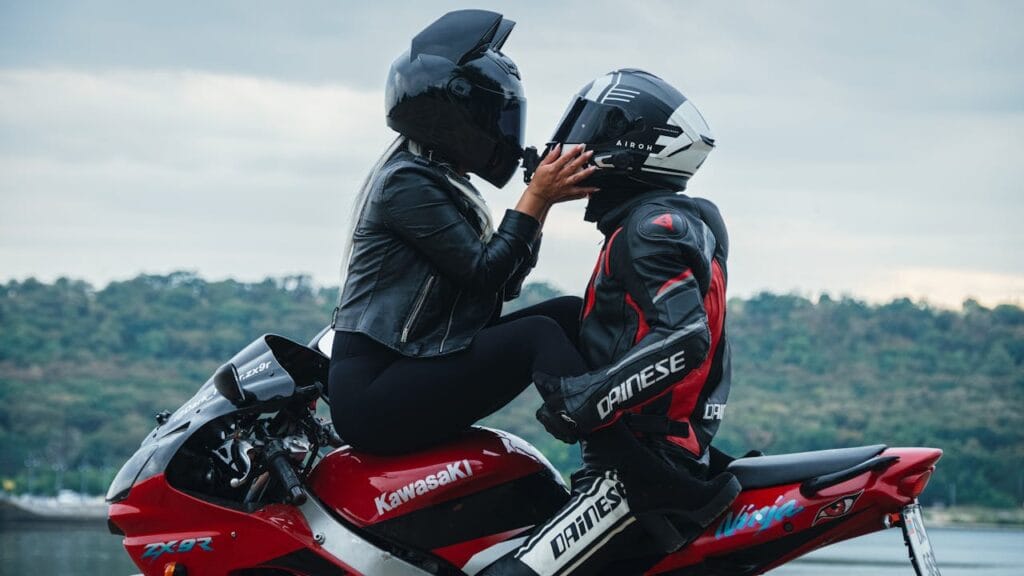
Output is “There are two people in the image“. If you look at the question and image, it makes sense. Now let’s do the same thing locally.
from transformers import AutoModelForCausalLM
from PIL import Image
import torch

# Load the model: moondream2
model = AutoModelForCausalLM.from_pretrained(
    "vikhyatk/moondream2",
    trust_remote_code=True,
    dtype=torch.bfloat16,
    device_map="cuda", # "mps" on CPUs
)

image = Image.open("motorcycle.jpg")

# settings
settings = {"temperature": 0.5, "max_tokens": 768, "top_p": 0.3}

# change the question
result = model.query(
    image,
    "How many people are in the image?",
    settings=settings
)
print(result)

# Answer a query with reasoning
result = model.query(
    image, "How many people are in the image?", settings=settings, reasoning=True
)
print(result)
Actually, the result is better. I copied directly the outputs. The second one is with reasoning enabled:
{‘answer’: ‘There are two people in the image, a man and a woman, sitting on a motorcycle.’}
{‘reasoning’: {‘text’: ‘I can see two people in the image, a man and a woman, sitting on a motorcycle.’, ‘grounding’: []}, ‘answer’: ‘2’}
NOTE: If you get any errors related to GPU memory, use lower resolution images and reduce the max_tokens parameter.
Okay, now the input is only the image. We expect the model to generate an output that describes the image. Again, first the API call, then local.
import moondream as md
from PIL import Image

# Initialize with your API key
model = md.vl(api_key=api_key)

image = Image.open("cat.jpg")

# Generate a caption
result = model.caption(image, length="normal")
print(result["caption"])
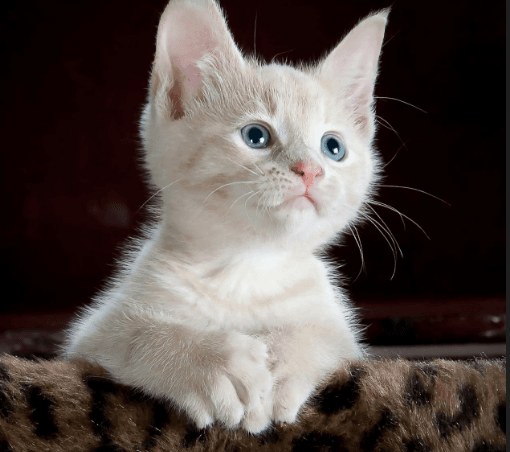
Output of the API call:
A light cream-colored kitten with bright blue eyes sits on a dark brown and tan leopard-print surface. Its paws are placed together in front of its chest, and its head is turned slightly to the right. The background is a dark brown color.
Amazing, right? Within 2 seconds, we got the result. For you to see different results for image captioning, I used motorcycle image again.
# Load the model
model = AutoModelForCausalLM.from_pretrained(
    "vikhyatk/moondream2",
    trust_remote_code=True,
    dtype=torch.bfloat16,
    device_map="cuda", # "mps" on CPU
)

# Load your image
image = Image.open("motorcycle.jpg")

# You can reduce max_tokens (for solving memory issues)
settings = {"temperature": 0.5, "max_tokens": 768, "top_p": 0.3}

# Generate a short caption
short_result = model.caption(
    image,
    length="short",
    settings=settings
)
print(short_result)
Output:
{‘caption’: ‘A couple, dressed in black and red, rides a red Kawasaki motorcycle along a scenic coastal road, with the woman seated on the back and the man on the front.’}
Let’s detect some objects. I will change the motorcycle image, by the way, I am bored of seeing it 🙂
Okay now, we have two inputs; image and text prompt. Inside the detect function, you can define your prompt. There is a white cute cat in my image, so my input prompt is “cat”.
import moondream as md
from PIL import Image
import cv2
import matplotlib.pyplot as plt
import numpy as np

# Initialize with your API key
model = md.vl(api_key=api_key)

# Load an image
image = Image.open("cat.jpg")
image_np = np.array(image)
width, height = image.size

# Detect objects
result = model.detect(image, "cat")
for obj in result["objects"]:
    x_min = int(obj['x_min'] * width)
    y_min = int(obj['y_min'] * height)
    x_max = int(obj['x_max'] * width)
    y_max = int(obj['y_max'] * height)
    print(f"Bounds: ({x_min}, {y_min}) to ({x_max}, {y_max})")
    cv2.rectangle(image_np, (x_min, y_min), (x_max, y_max), (0, 255, 0), 2)

# Display the image with bounding boxes
plt.imshow(image_np)
plt.axis('off')
plt.show()
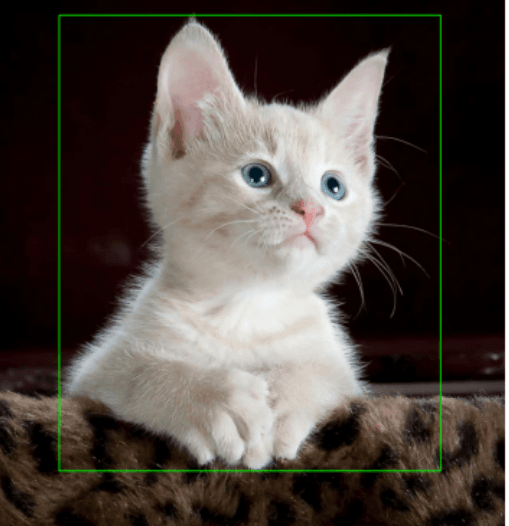
By the way, the output of the API call is normalized coordinate values. Therefore, for drawing a rectangle, coordinate values must be calculated using the original image sizes.
from transformers import AutoModelForCausalLM
from PIL import Image
import torch
import numpy as np
import matplotlib.pyplot as plt
import cv2

# Load the model
model = AutoModelForCausalLM.from_pretrained(
    "vikhyatk/moondream2",
    trust_remote_code=True,
    dtype=torch.bfloat16,
    device_map="cuda", # "cuda" on Nvidia GPUs
)

image = Image.open("motorcycle.jpg")

image_np = np.array(image)
width, height = image.size

# Optional sampling settings
settings = {"max_objects": 50}

# Run Moondream
result = model.detect(image, "person", settings=settings)
print(result)

for obj in result["objects"]:
    x_min = int(obj['x_min'] * width)
    y_min = int(obj['y_min'] * height)
    x_max = int(obj['x_max'] * width)
    y_max = int(obj['y_max'] * height)
    print(f"Bounds: ({x_min}, {y_min}) to ({x_max}, {y_max})")
    cv2.rectangle(image_np, (x_min, y_min), (x_max, y_max), (0, 255, 0), 2)

# Display the image with bounding boxes
plt.imshow(image_np)
plt.axis('off')
plt.show()
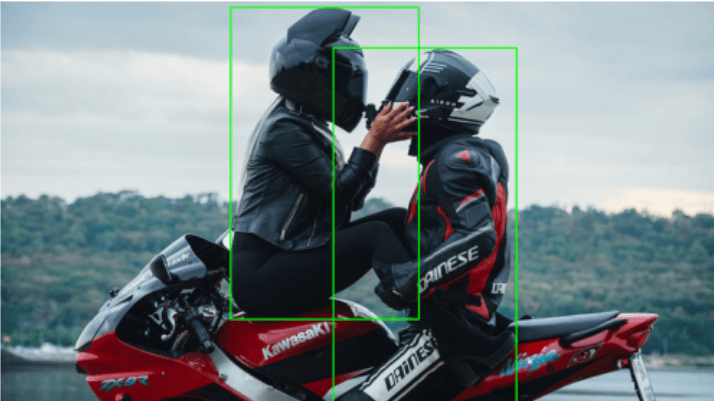
Okay, that’s it from me. See you in another article, have fun 🙂