Physical Address
304 North Cardinal St.
Dorchester Center, MA 02124
Physical Address
304 North Cardinal St.
Dorchester Center, MA 02124

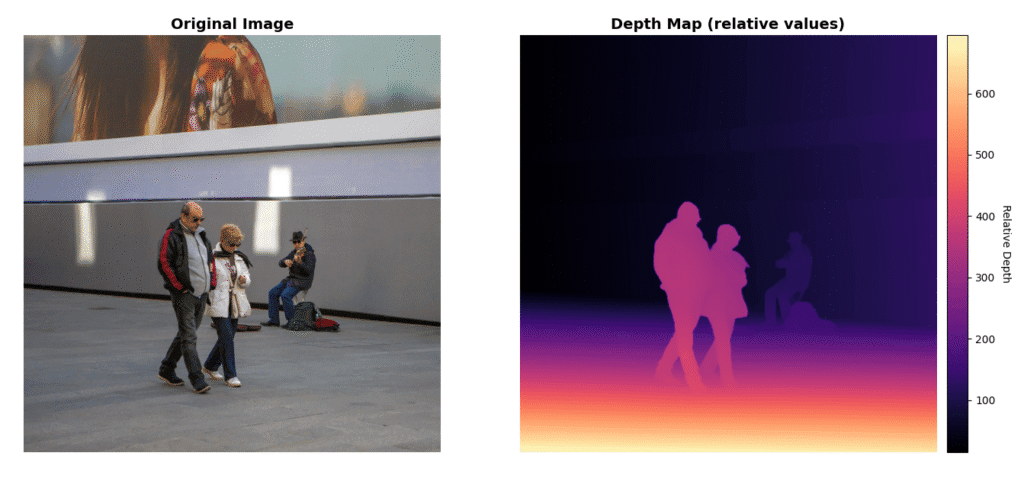
When we talk about depth in computer vision, we think about stereo cameras, time-of-flight sensors, and LiDAR. These methods don’t work with a single RGB image, they need more than that. For stereo cameras, there are two cameras mounted horizontally, and camera parameters are needed. For LiDAR, it calculates the response time of a laser and calculates a depth map. But there are other methods that directly work on single RGB images and generate depth maps. Depth Anything V2 falls into this category, there is no need for camera parameters or anything else. It gives a relative depth map from a single RGB image (monocular depth estimation). In this article, I will show you how to create a proper environment and generate depth maps using Depth Anything V2 on RGB images.
Training method of this model isn’t unique at all. There are three main stages:
Real-world labeled datasets are not that clear, there can be wrong annotations, missing objects, or poor annotations. Even the most popular datasets (KITTI) are not perfectly clear. So, the authors of Depth Anything V2 decided to use synthetic datasets for training. Synthetic datasets offer pixel-perfect, precise depth labels. They are simply generated by computers, not by human annotators.
But of course, if only the synthetic dataset were used, it wouldn’t be practical for real-world scenarios. So, by using the teacher model, from real-world images (62 million unlabeled real images), a new dataset is created. Basically, the teacher model is used for annotation.
Finally, the student model is trained on this new dataset annotated by the teacher model. This allows the model to learn about real-world scenarios and get more realistic results. It is worth mentioning that the student model is only trained on real-world annotated images, and the authors state that removing the synthetic images entirely gave better results.
Model uses DINOv2 for feature extraction, and the DPT (Dense Prediction Transformer) decoder for depth estimation.
This was a brief introduction to Depth Anything V2, if you want to learn more, you can read the paper. Also, I have a YouTube video about this article, you can watch it.
You just need to clone the repository and install a few packages. Default installation is as following:
git clone https://github.com/DepthAnything/Depth-Anything-V2
cd Depth-Anything-V2
pip install -r requirements.txt
If you want to run models faster, you should install PyTorch with GPU support, and then install other packages. You can follow my article for creating a GPU-supported PyTorch environment.
If you follow this method, don’t forget to remove PyTorch (torch and torchvision) from requirements.txt so that it won’t try to install these packages again.
There are more than one pretrained model, you can use whichever you want. Bigger models give more accurate results (most of the time), but they require more computing power and time.
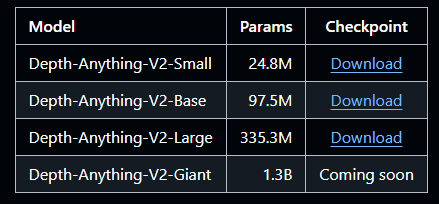
Since I have a GPU-supported environment, I will stick with (Depth-Anything-V2-Large). It is about 1.4 GB, whereas the small model is around 100 MB. You can click this link for downloading the large model, or you can go to the main repository and download your preferred model (GitHub Repo link).
After you have downloaded a model, it is common to create a checkpoints folder inside the repository and copy models to that location.
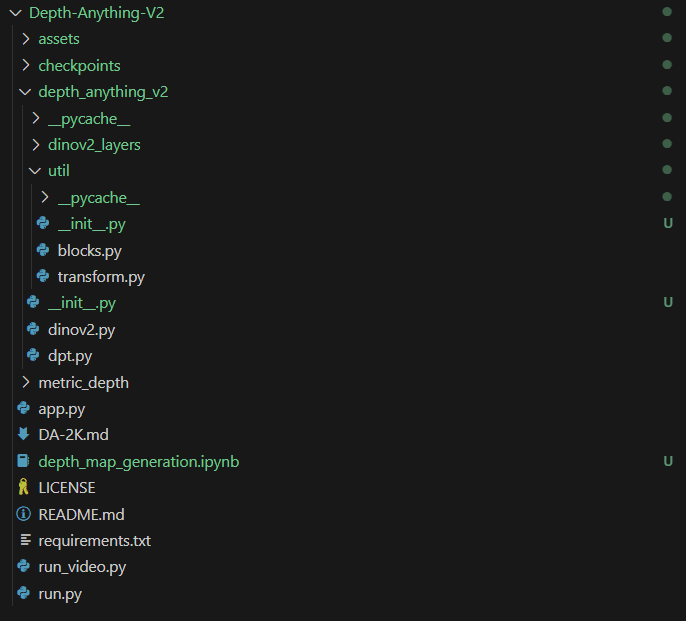
Okay, the boring part is finished. I created a new notebook inside the Depth-Anything-V2 folder that we just cloned. Depending on where your python files are, you might need to add an empty __init__.py file inside the depth_anything_v2 folder and the depth_anything_v2/util folder.
First, let’s import the necessary libraries:
import cv2
import numpy as np
import torch
import matplotlib.pyplot as plt
%matplotlib inline

from depth_anything_v2.dpt import DepthAnythingV2

print(f"PyTorch version: {torch.__version__}")
print(f"CUDA available: {torch.cuda.is_available()}")
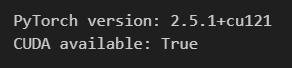
If you followed the default installation, you can see False in the output, and that is completely normal.
Now, let’s load the model, don’t forget to change the encoder variable and the path to the model.
device = 'cuda' if torch.cuda.is_available() else 'cpu'

# Model configurations
configs = {
    'vits': {'encoder': 'vits', 'features': 64, 'out_channels': [48, 96, 192, 384]},
    'vitb': {'encoder': 'vitb', 'features': 128, 'out_channels': [96, 192, 384, 768]},
    'vitl': {'encoder': 'vitl', 'features': 256, 'out_channels': [256, 512, 1024, 1024]},
    'vitg': {'encoder': 'vitg', 'features': 384, 'out_channels': [1536, 1536, 1536, 1536]}
}

# If you use different model change here
encoder="vitl"

model = DepthAnythingV2(encoder)
model.load_state_dict(torch.load(f'checkpoints/depth_anything_v2_{encoder}.pth', map_location='cuda'))

# Move model to device and set to evaluation mode
model = model.to(device).eval()
Now, read the input image and run the model.
# path to the image, change here
IMAGE_PATH = r"assets/penguin.jpg"
image = cv2.imread(IMAGE_PATH)

# compute depth map
depth_map = model.infer_image(image)

print(f"  Shape: {depth_map.shape}")
print(f"  Data type: {depth_map.dtype}")
print(f"  Value range: [{depth_map.min():.4f}, {depth_map.max():.4f}]")
print(f"  Mean value: {depth_map.mean():.4f}")
print(f"  Std deviation: {depth_map.std():.4f}")
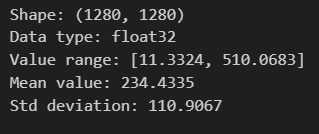
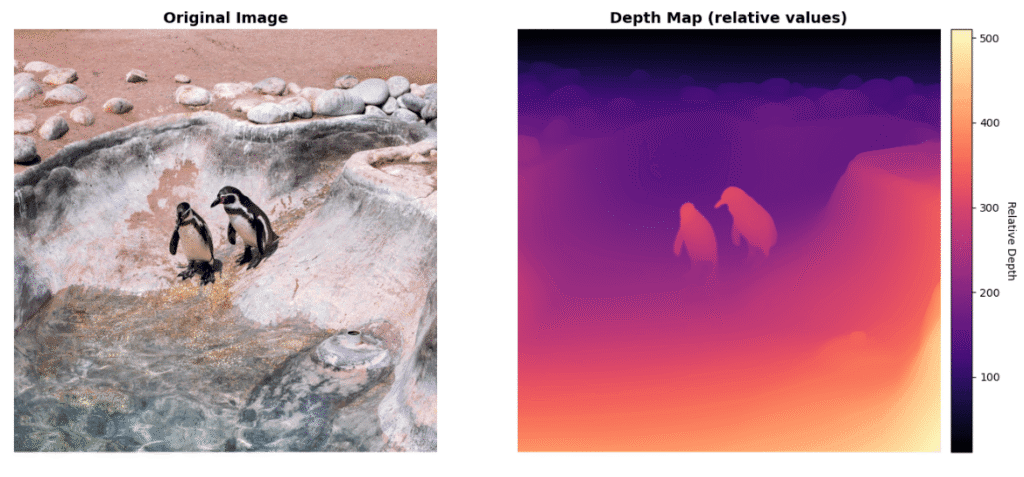
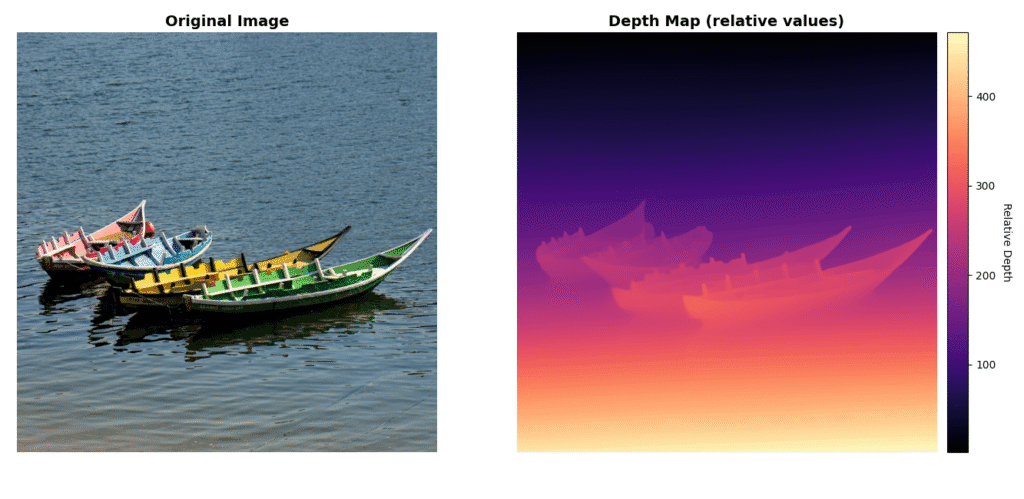
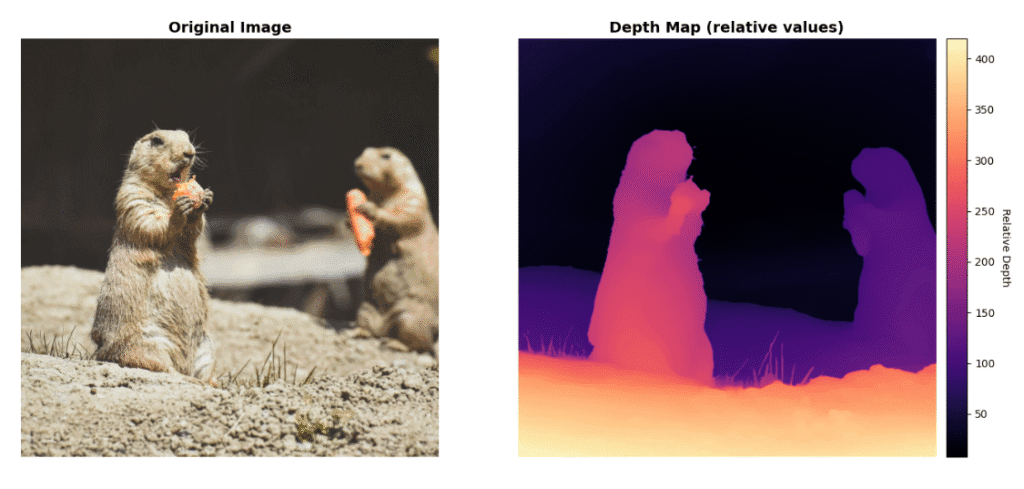
Shape of the depth_map variable is exactly the same as the image size, because there is one value for each pixel. Since the output is a relative depth map, values don’t correspond to any real length. Actually, values are inversely related to distance. Smaller values mean that a pixel is far away from a bigger-valued pixel.
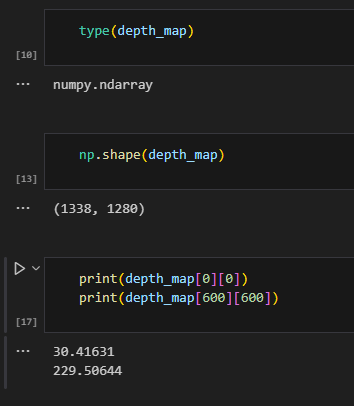
You can directly save the depth_map variable with the cv2.imwrite() function since it is an image, or display it with matplotlib:
plt.imshow(depth_map, cmap='magma')
plt.colorbar()
plt.axis('off')
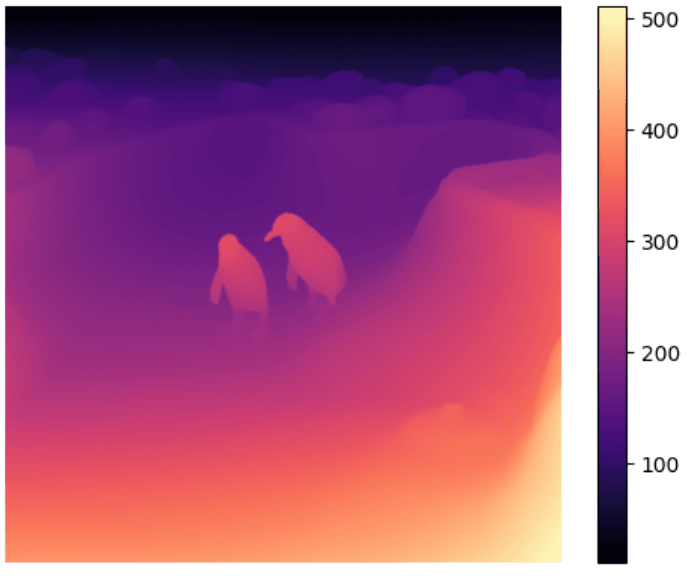
After generating relative depth map, you can try to measure real length by using static objects. Like avg person length, or any other object that exists in your image. Maybe, I will write another article about this in future. If you have any questions, don’t hesitate to ask (siromermer@gmail.com)
Okay, that’s it from me, see you in another article, babaaaay 🙂