Physical Address
304 North Cardinal St.
Dorchester Center, MA 02124
Physical Address
304 North Cardinal St.
Dorchester Center, MA 02124

YOLO, SSD, Faster R-CNN, DETR, there are a lot of models for detecting objects. But, which one is the best? Another question is how you define the “best”? There are a few questions. I can’t answer which model is best for you, but I am sure that RF-DETR will be one of your favorites. In this article, I will show you how to train rf-detr object detection model on a custom dataset.
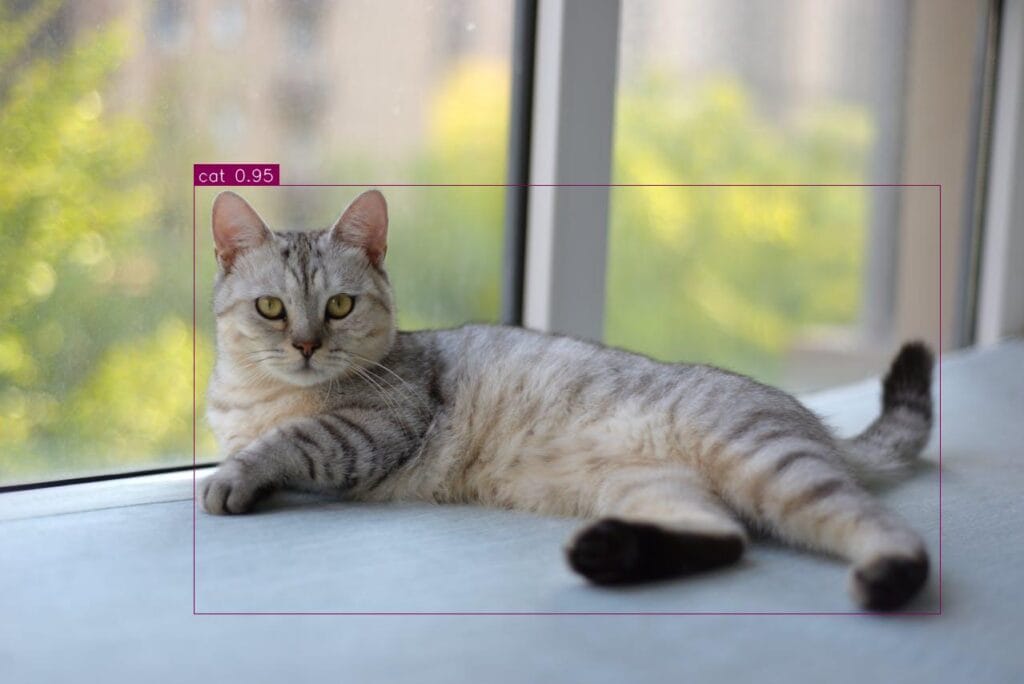
If you haven’t tried to train a custom RF-DETR model before, you will be shocked. Around 30 lines, training and inference parts will be done. You can find a dataset from the internet, and by following this article, you can train a custom rf-detr model within a few hours. There will be 4 steps:
If you want to skip the NVIDIA drivers and other dependencies, you can use free servers like Kaggle or Google Colab. You still need to install a few packages related to rf-detr, but it will be easier. I trained my model locally, the installation part wasn’t complex at all; within 15–20 minutes, you are good to go.
Make sure that you have NVIDIA drivers installed by running nvidia-smi on your terminal:
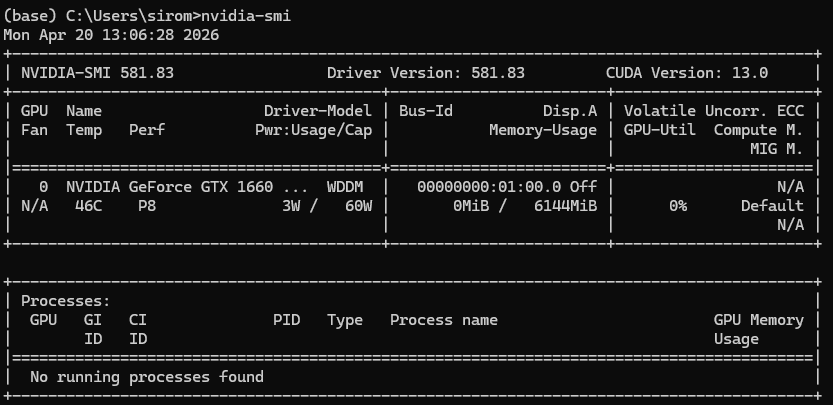
First, let’s create a conda environment and activate it:
conda create -n rfdetr_env python=3.10 -y
conda activate rfdetr_env
Now, let’s install PyTorch with GPU-support. If you get any errors, you can follow this article, I already explained this in detail.
pip install torch torchvision torchaudio --index-url https://download.pytorch.org/whl/cu121
After the installation is finished, let’s check if PyTorch is installed with CUDA support using torch.cuda.is_available()

Let’s clone the rf-detr repository, and after cloning make sure you are in the right directory
git clone https://github.com/roboflow/rf-detr.git
cd rf-detr
Now let’s install additional dependencies:
pip install -e .
Few more libraries:
pip install supervision inference
For training, install these as well (If you only want to use pretrained models you can ship this):
pip install -e ".[train,loggers]"
Okay, the installation is finished. For testing the environment, create a new notebook or Python file, then activate your environment and run this code. It basically loads a pretrained model to your GPU:
import torch
from rfdetr import RFDETRNano

# Check if CUDA is available
device = "cuda" if torch.cuda.is_available() else "cpu"
print(f"Using device: {device}")

#  pretrained model
model = RFDETRNano(device=device)
There is one rule here; your dataset must be in COCO JSON format. Most of the object detection datasets on the internet are in YOLO or COCO format. If you decide to choose a dataset from Roboflow, you can directly select the COCO format from the export settings, and you can start training. If your dataset is in a different format (YOLO, Pascal VOC, etc.), you have to write a simple script to convert the dataset to COCO format.
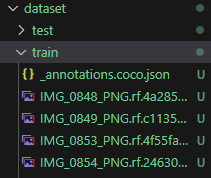
Basically, there will be subfolders named train and valid folders (test is optional), and within these folders, there will be images and one JSON file that contains all the annotation information for that specific set.
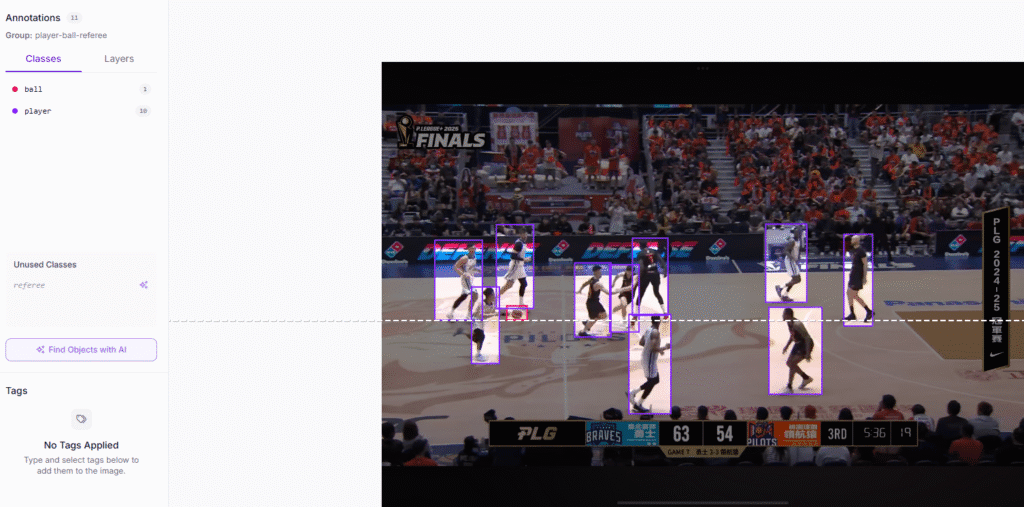
I randomly chose a dataset from Roboflow for detecting basketball players, referees, and the ball. If you want to use the same dataset, you can check this link.
Training is easier than you think. If you have low VRAM, you will probably see a CUDA out of memory error. For solving this, you can reduce the image size and batch size.
Depending on your dataset, you can change the epoch number as well.
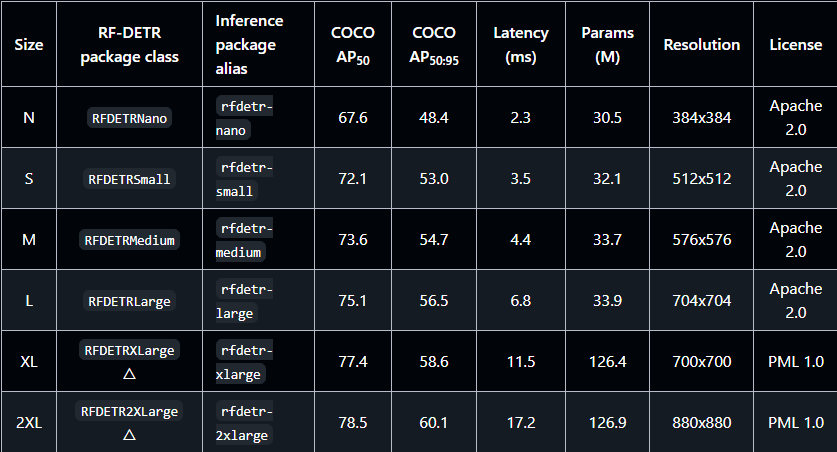
I have 6GB VRAM on my local, so I will stick with the RFDETRNano model. If you have higher VRAM, you can go for bigger models like RFDETRSmall, RFDETRMedium, RFDETRLarge, RFDETRXLarge, RFDETR2XLarge.
from rfdetr import RFDETRNano

# 1. Initialize
model = RFDETRNano(device="cuda")

# 2. Start Fine-Tuning
# Parameter names must match exactly what the library expects
model.train(
    dataset_dir="dataset",       # Corrected from 'data'
    epochs=50,
    batch_size=2,                # Corrected from 'batch'
    imgsz=384,                   # Resolution
    precision="16-mixed",
    project="my_project",
    name="custom_rf_detr",
    exist_ok=True
)
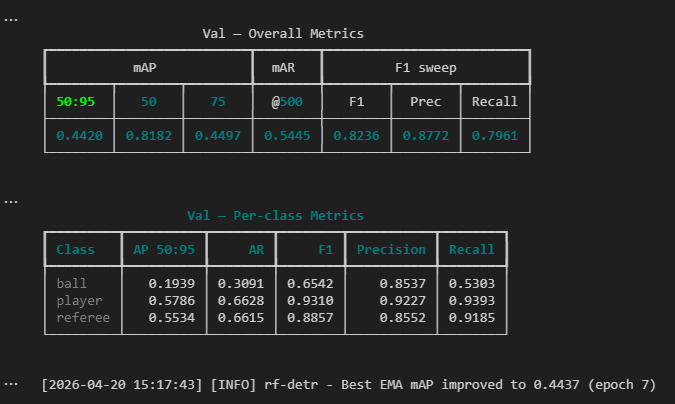
Depending on your GPU and training parameters; total training time will be changed.
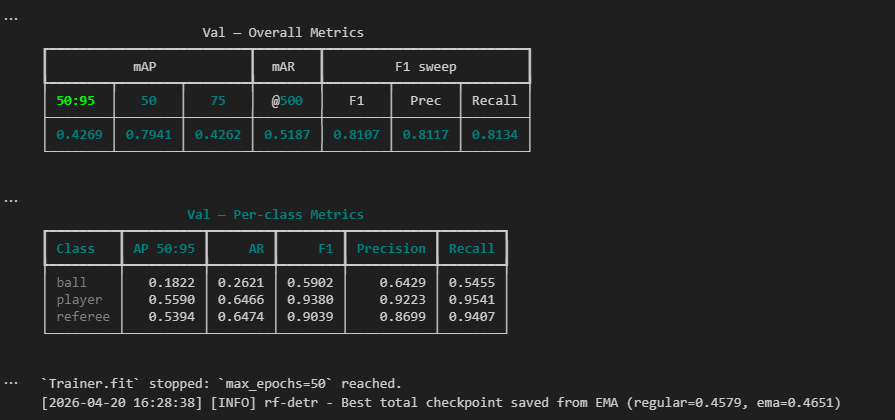
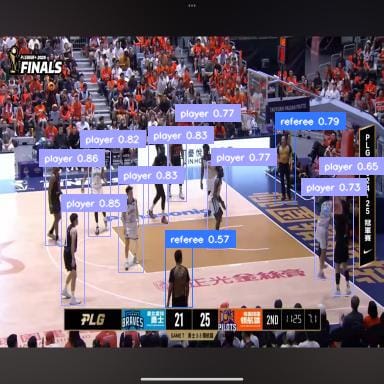
As you can see from the above image, training is finished. Now it is time for testing the model.
First, we need to load our trained model. Then read a test image and run the model.
import supervision as sv
from rfdetr.detr import RFDETR
import matplotlib.pyplot as plt
from PIL import Image

# 1. Initialize the model from the checkpoint
checkpoint_path = "output/checkpoint_best_regular.pth"
model = RFDETR.from_checkpoint(checkpoint_path, device="cuda")

# 2. Path to the new test image
image_path = r"dataset\test\IMG_0943_PNG.rf.892fc6f02252c619a36d9bf52701a353.jpg"

# 3. Run Prediction, this handles the pre-processing and post-processing (NMS-free) internally
results = model.predict(image_path, threshold=0.4)

# 4. Extract class names from the trained model metadata
class_names = model.class_names

# 5. Format labels for the display
labels = [
    f"{class_names[class_id]} {confidence:.2f}"
    for class_id, confidence in zip(results.class_id, results.confidence)
]

# Annotate the image; results.metadata["source_image"] contains the image as a NumPy array
image = results.metadata["source_image"]

# Reduce text_scale, text_padding, thickness, and enable smart_position
box_annotator = sv.BoxAnnotator(thickness=1)
label_annotator = sv.LabelAnnotator()

annotated_frame = box_annotator.annotate(scene=image.copy(), detections=results)
annotated_frame = label_annotator.annotate(scene=annotated_frame, detections=results, labels=labels)

# display the result
plt.imshow(annotated_frame)
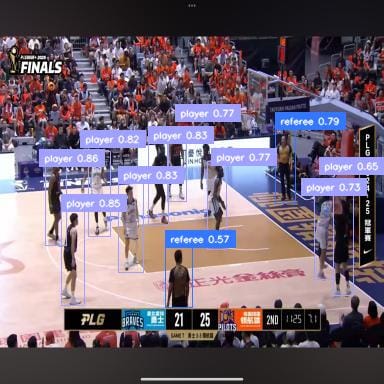
Okay, that’s it from me. babays 🙂