Physical Address
304 North Cardinal St.
Dorchester Center, MA 02124
Physical Address
304 North Cardinal St.
Dorchester Center, MA 02124

When we deal with a classical computer vision problem, we first check if there is an OpenCV implementation for a specific thing, and this is not a wrong approach. It can be edge detection, colorspace conversion, thresholding, feature extraction… But sometimes, we might need to write our own functions and methods for specific tasks. And when we deal with real-time applications, pure Python is a pain in the ass. Specifically , when there are nested loops, performance falls dramatically. You can always use C++ for high performance, but there are some solutions to improve FPS values in Python. There is a library called Numba, and it is perfect for improving FPS in Python. And you don’t have to limit yourself to computer vision, you can use Numba with any Python code.
So how does Numba improves performance? Actually, it is a compiler for Python code. It takes Python code and compiles it to machine code once when the function is called. Python is an interpreted language, so each line is executed at runtime one by one. If there is a loop, for each iteration, the same operations are repeated even though the code is the same. By using Numba, you compile the Python code once, and use it until the program ends. And there are even options for saving Numba code to cache, so you don’t have to compile it when you run the code again. See the diagram below, Numba uses the LLVM compiler library.
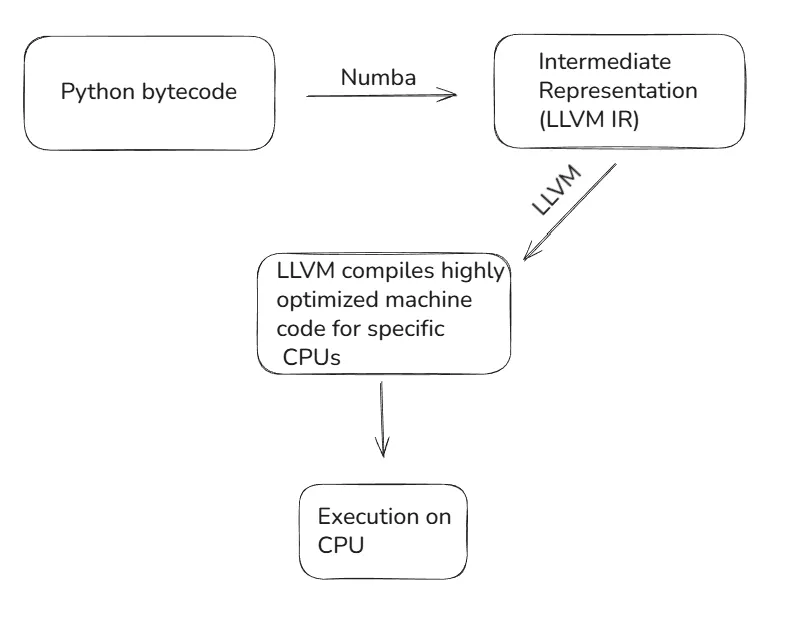
In case of performance (FPS), it is always better to use C++. If you really need a computer vision pipeline that works fast, you should directly go with C++. In classical computer vision applications you can’t beat C++ with Python in terms of performance. But this doesn’t mean that you can’t improve the FPS on Python code, and here is Numba comes into play.
So what I recommend to you in case of performance:
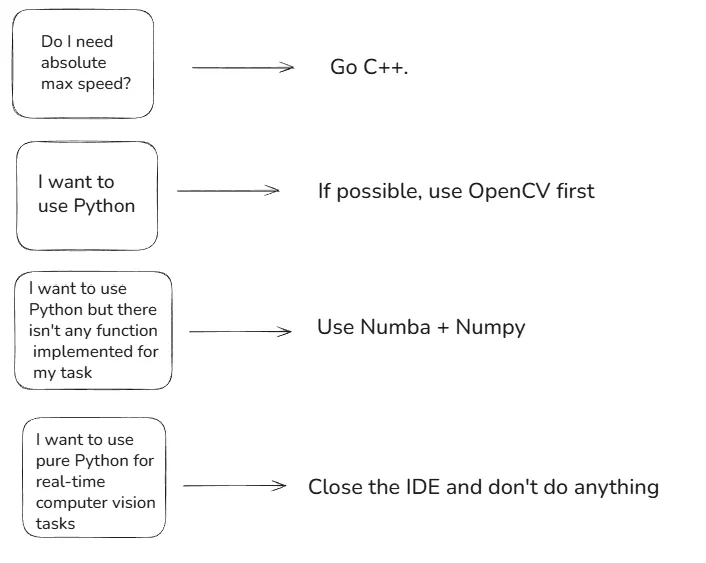
Now, I will show you how you can use Numba. There will be two simple implementations, and a comparison.
I chose edge detection for comparison. The idea is simple, if you check the differences between pixel values you can find edges. Think about a black object on a white wall. The difference between the edge of the black object (pixel value 0) and the white wall (pixel value 255) will be really high, and it can be classified as an edge. Set some threshold, find gradients (differences), and if they are above the threshold, classify them as an edge, and display the results.
Let’s start with the Numba implementation. There are two different compilation decorators that Numba provides: @njit and @jit.njit basically compiles everything to native machine code and if there are some lines that can’t be converted, it raises an error. On the other side jit is more flexible, it doesn’t raise an error, it falls back to the Python interpreter(be careful, you might not be aware of this). Parameters are the same:
nopython=True/False: no-python mode. @njit is equivalent to @jit(nopython=True)parallel=True: Auto-parallelization using multithreadingfastmath=True: Fast math optimizationscache=True: Cahes compiled machine code to disk, so that it takes less time to run next time.You can read a video and call numba_edge_detect() function for each frame, and display the output of this function, it is a binary image.
import cv2
import numpy as np
from numba import njit

@njit(fastmath=True)
def numba_edge_kernel(gray):
    """Fast Numba version with thresholding"""

    # height and width
    h, w = gray.shape
    edges = np.zeros_like(gray)

    # Edge detection with gradient
    for i in range(1, h-1):
        for j in range(1, w-1):
            # computer gradient in x and y direction
            gx = gray[i+1, j] - gray[i-1, j]
            gy = gray[i, j+1] - gray[i, j-1]
            # compute edge strength
            edges[i, j] = np.sqrt(gx**2 + gy**2)

    # Apply threshold: if edge strength > threshold, it's an edge (255), else not (0)
    threshold = 15
    for i in range(h):
        for j in range(w):
            if edges[i, j] > threshold:
                edges[i, j] = 255
            else:
                edges[i, j] = 0

    return edges

def numba_edge_detect(frame):
    gray = cv2.cvtColor(frame, cv2.COLOR_BGR2GRAY).astype(np.float32)
    # Numba needs the kernel to be compiled, first run might be slower
    edges = numba_edge_kernel(gray)
    return edges.astype(np.uint8)
NOTE: If you set parallel=True, you must replace standard range() with prange()
It is time for Python implementation, nothing fancy here.
import cv2
import numpy as np

def python_edge_detect(img):
    """Python version with loops"""

    # Convert to grayscale
    h, w = img.shape[:2]
    gray = cv2.cvtColor(img, cv2.COLOR_BGR2GRAY).astype(np.float32)
    # Initialize edges array
    edges = np.zeros_like(gray)

    # Edge detection with gradient
    for i in range(1, h-1):
        for j in range(1, w-1):
            # Compute gradient in x and y direction
            gx = gray[i+1, j] - gray[i-1, j]
            gy = gray[i, j+1] - gray[i, j-1]
            # Compute edge strength
            edges[i, j] = np.sqrt(gx**2 + gy**2)

    # Apply threshold: if edge strength > threshold, it's an edge (255), else not (0)
    threshold = 15
    for i in range(h):
        for j in range(w):
            # Set pixel to 255 if it's an edge
            if edges[i, j] > threshold:
                edges[i, j] = 255
            else:
                edges[i, j] = 0

    return edges.astype(np.uint8)
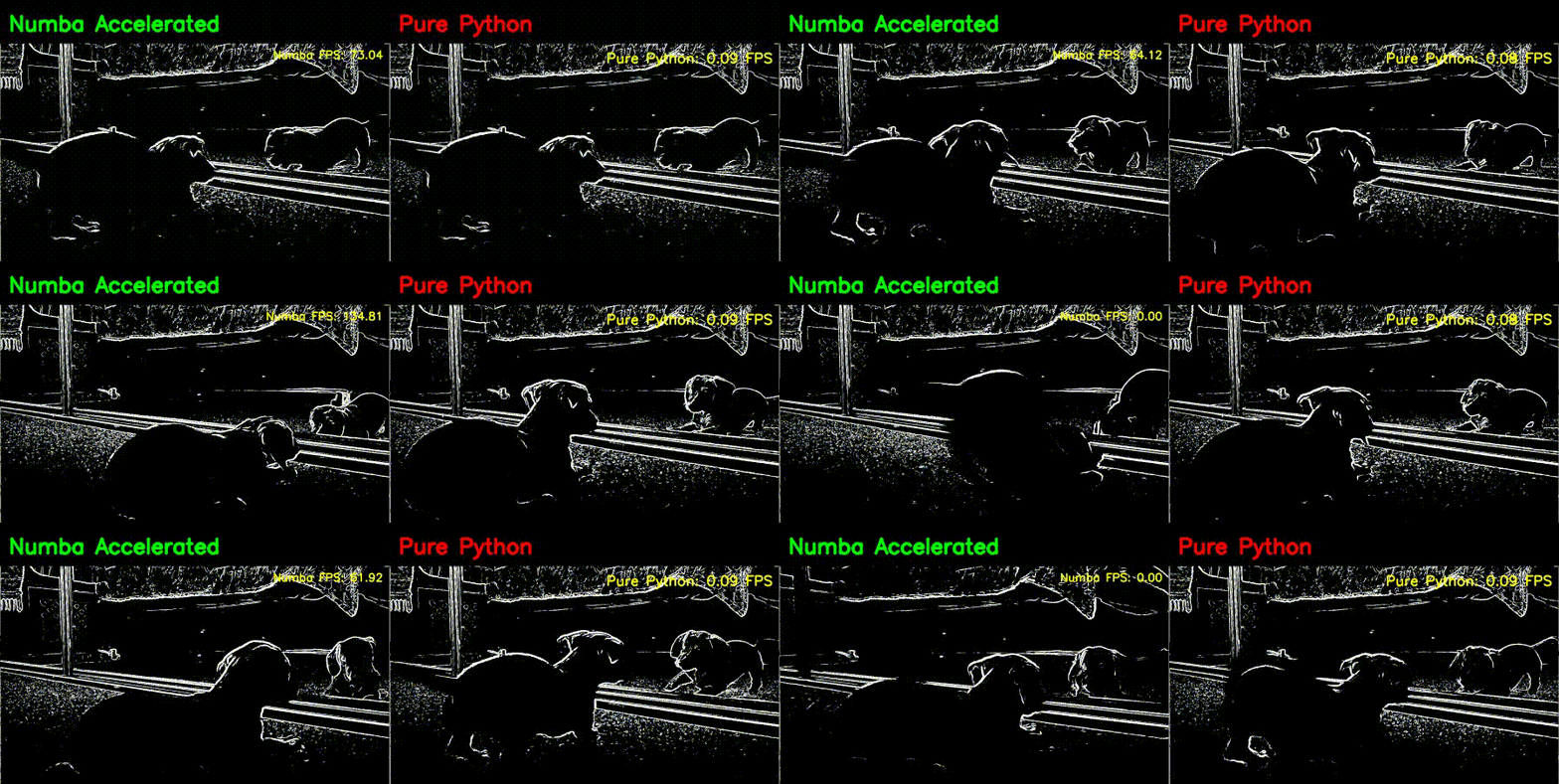
That’s it from me, I hope you enjoyed my article. See you in another article, babaysss!