Physical Address
304 North Cardinal St.
Dorchester Center, MA 02124
Physical Address
304 North Cardinal St.
Dorchester Center, MA 02124

There are a lot of supervised object detection and instance segmentation models (YOLO, RCNN Family, DETR …). Pipeline is the same for each one; first, a dataset is collected, by a human operator annotations are made, and the dataset is cleaned. Then the model is trained, evaluated, and ready to use. This process might take a lot of time, especially the annotation part (from the paper: For the COCO dataset, 28,000 human hours of annotation time is spent).
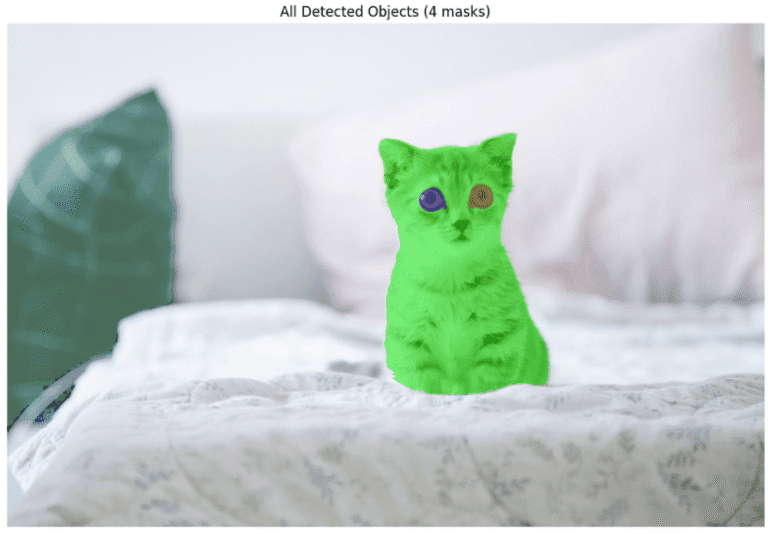
What about unsupervised models, do we need to spend time on annotation? Of course no, that is the key part. The model is trained on unlabeled images, and CutLER is a great example of this category. It can perform object detection and instance segmentation without any labeled dataset, and in this article, I will show you how to create a proper environment for running CutLER models and give you a quick guide to how to use the repository.
Okay, I mentioned CutLER is an unsupervised model, but how does it work? At the highest level, first it creates its own annotations from images, then trains a model using this newly generated dataset. Now, let’s go deeper.
CutLER uses the MaskCut algorithm to generate initial masks for training. First, a pre-trained self-supervised Vision Transformer (DINO) extracts features from an image. Then, a patch-wise affinity (similarity) matrix is generated from these features.
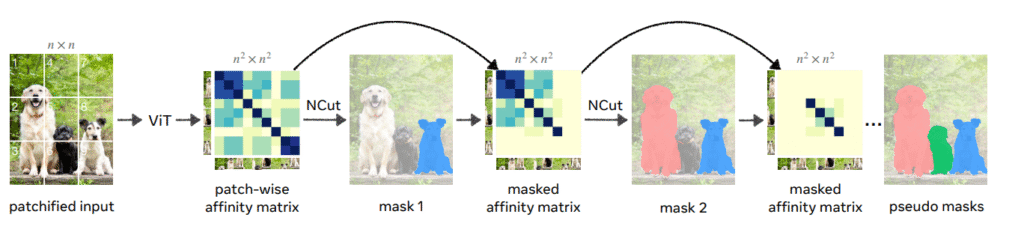
As you can see from the above chart, the Normalized Cut is performed on this matrix, and it creates binary masks for a single object at each iteration. But of course, most of the time there is more than one object in an image, therefore, the Normalized Cut algorithm is performed iteratively. Every time a new mask is created, values from that specific region of the affinity matrix are set to zero. In this way, more than one mask for each image is generated. In this way, a dataset with pseudo labels is created.
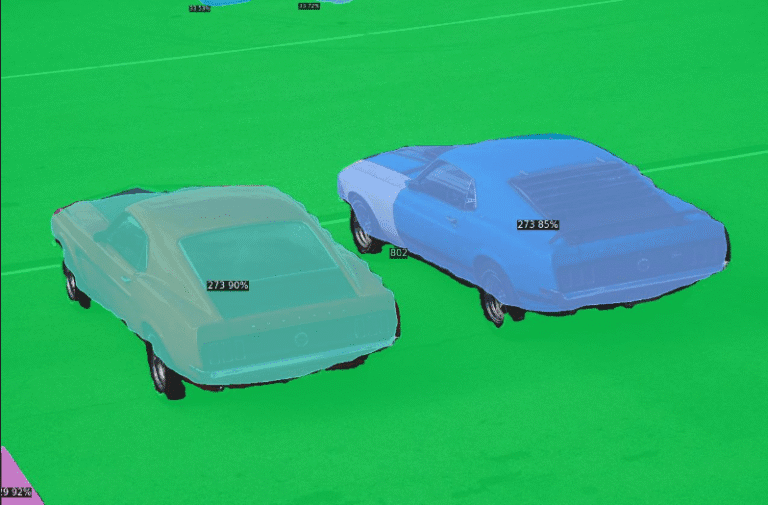
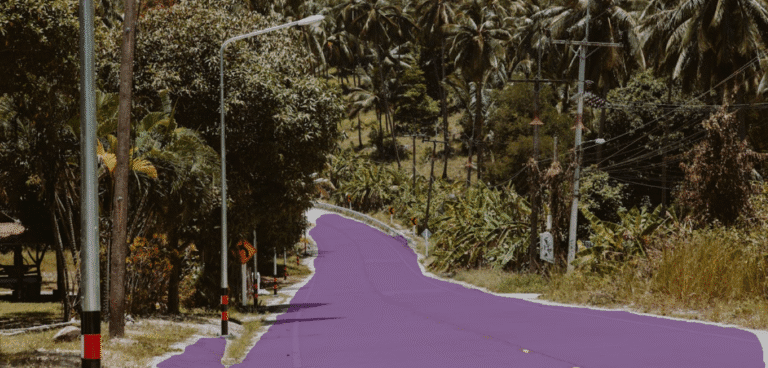
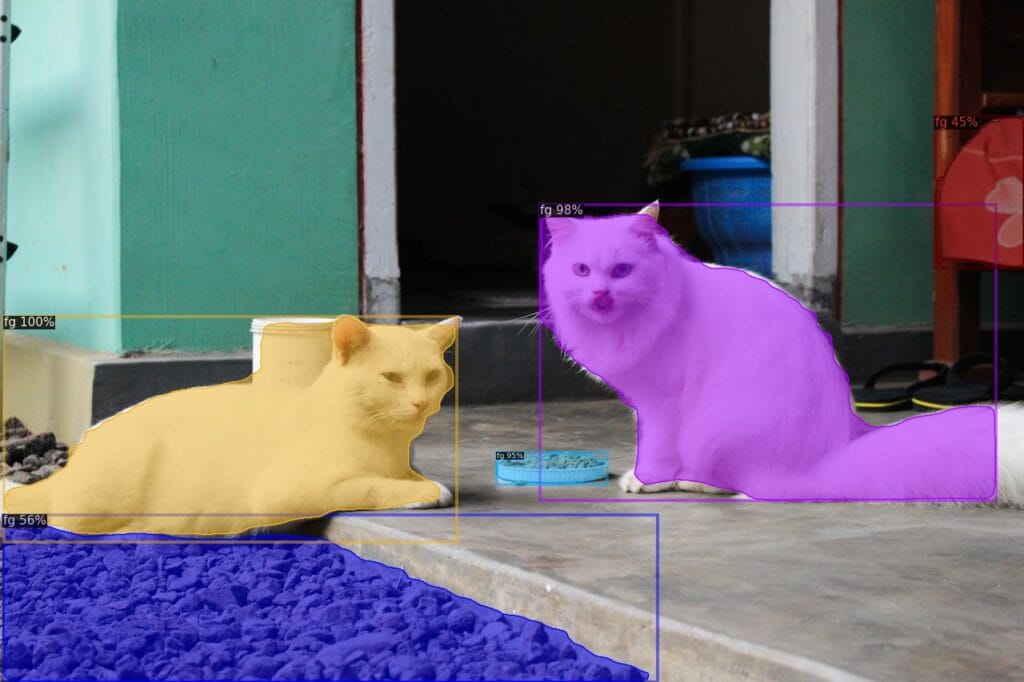
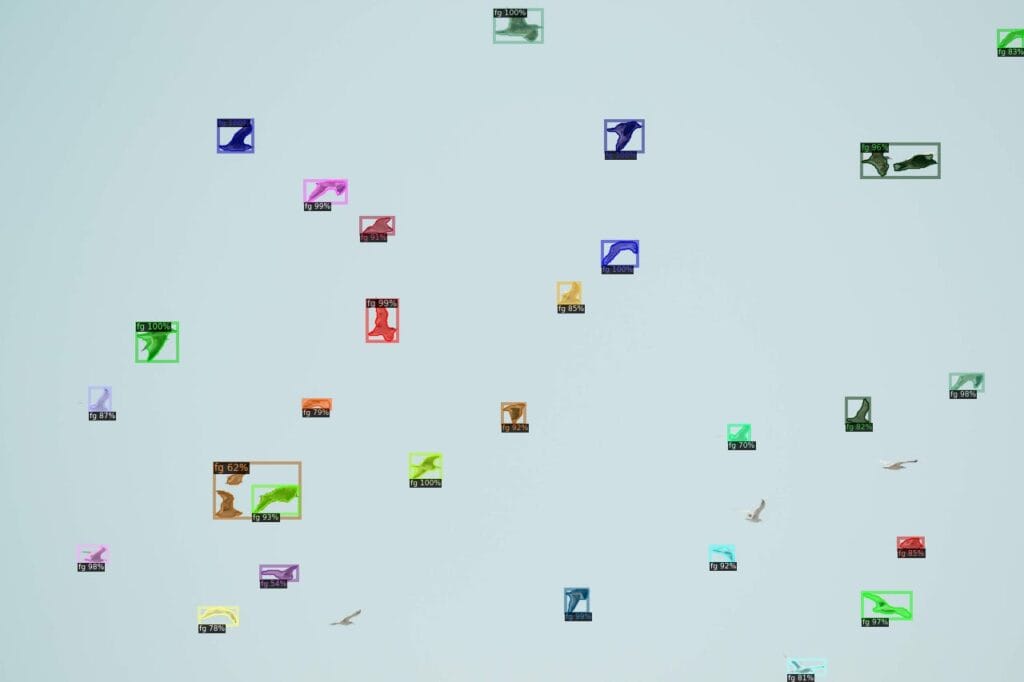
You might be aware that I didn’t mention anything about labels until the last sentence. Because here, we don’t have any classes like in supervised models. There are no classes like “car” or “person”. This is the whole point of unsupervised learning, we don’t spend time on annotation, so we don’t have a real class output(It can be called as class-agnostic). The output masks have the same label, “foreground“. Although there are unsupervised models like U2SEG that give labels as output via clustering and Hungarian matching, in unsupervised learning, we don’t have labels like in YOLO or Mask R-CNN.
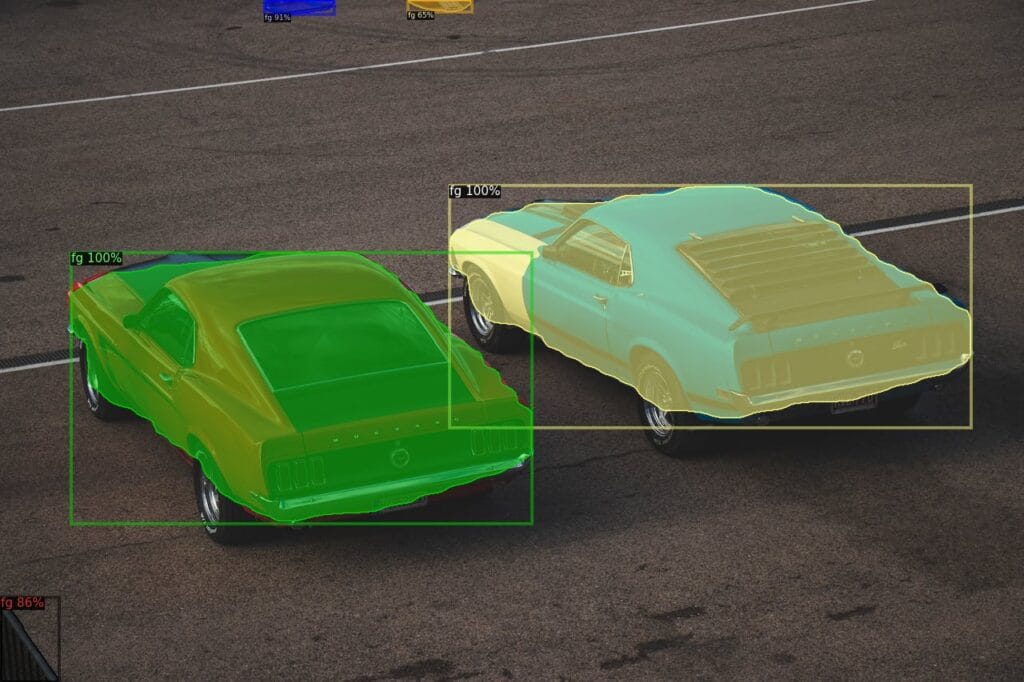
Now that we have a dataset created without any human supervision, it is time for training. The authors used Cascade Mask R-CNN as the model. There is one problem: all the masks were generated without any human vision, so there will be missing objects and poor annotations for sure. Standard loss functions would penalize the model for finding objects that are not in the generated annotations. This is a big problem, and to solve this, DropLoss is used.
During training, if a predicted mask by the model has small overlap with any ground truth (annotations generated in the first step), instead of penalizing the model, the loss for that mask will be completely ignored. In this way, missing annotations are handled.
The final step refines the model to improve precision. Even though the detector is trained on coarse masks generated in the first step, the model cleans the data by its nature. The model uses its own high-confidence predictions as new annotations and trains the model. This way, for each round, annotation quality is increased, and the model gets better results.
Okay, now lets continue with the installation.
The authors specifically mentioned that for the operating system, you need to use Linux or macOS. I used Ubuntu 22.04 as the operating system.
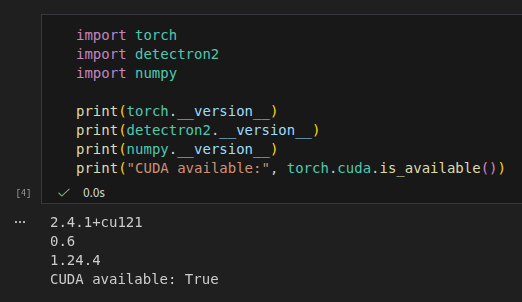
Besides PyTorch, you need to install Detectron2 as well. First, you need to install PyTorch(version will changed depending on your CUDA version), and then Detectron2. Don’t forget to check compatibility between PyTorch and Detectron2. For a GPU-supported PyTorch environment, you can follow my other article (link).
Based on the documentation:
pip3 install torch torchvision --index-url https://download.pytorch.org/whl/cu126
If you got any error related to Detectron2, you can check the documentation.
git clone git@github.com:facebookresearch/detectron2.git
cd detectron2
pip install -e .
pip install git+https://github.com/cocodataset/panopticapi.git
pip install git+https://github.com/mcordts/cityscapesScripts.git
Then, go to the root folder and clone the CutLER repository.
git clone --recursive git@github.com:facebookresearch/CutLER.git
cd CutLER
pip install -r requirements.txt
You can directly use demo.py script for testing the model on images.
cd cutler

python demo/demo.py \
  --config-file model_zoo/configs/CutLER-ImageNet/cascade_mask_rcnn_R_50_FPN_demo.yaml \
  --input demo/imgs/*.jpg \
  --output demo_output/ \
  --opts MODEL.WEIGHTS model_zoo/checkpoints/cutler_cascade_final.pth
Here, cascade_mask_rcnn_R_50_FPN_demo.yaml is model config file.
You don’t have to use demo.py file, you can call necessary functions and integrate CutLER into your pipeline. I created new notebook inside CutLER folder(the cloned one).
First, lets import few things. Dont forget to change paths. Depending on where you created your notebook, you can comment out lines related to path.
import sys
import os
sys.path.insert(0, '/home/omer/vision-ws/cutler-ws/CutLER/cutler')
sys.path.insert(0, '/home/omer/vision-ws/cutler-ws/CutLER/cutler/demo')
os.chdir('/home/omer/vision-ws/cutler-ws/CutLER/cutler')

import cv2
import torch
from detectron2.config import get_cfg
from detectron2.data.detection_utils import read_image
from predictor import VisualizationDemo
import matplotlib.pyplot as plt
from config import add_cutler_config

# Setup configuration
cfg = get_cfg()
add_cutler_config(cfg)
# Load configuration from file and set weights
cfg.merge_from_file('model_zoo/configs/CutLER-ImageNet/cascade_mask_rcnn_R_50_FPN_demo.yaml')
cfg.MODEL.WEIGHTS = 'model_zoo/checkpoints/cutler_cascade_final.pth'
# Set score thresholds for various model components
cfg.MODEL.RETINANET.SCORE_THRESH_TEST = 0.35
cfg.MODEL.ROI_HEADS.SCORE_THRESH_TEST = 0.35
cfg.MODEL.PANOPTIC_FPN.COMBINE.INSTANCES_CONFIDENCE_THRESH = 0.35
# Freeze the configuration
cfg.freeze()

# Initialize the visualization demo
demo = VisualizationDemo(cfg)
Now, lets run the model using run_on_image method. You can see the implementation from predictor.py file.
img_path = 'demo/imgs/demo1.jpg'
img = read_image(img_path, format="BGR")
predictions, visualized_output = demo.run_on_image(img)

plt.figure(figsize=(8, 5))
plt.imshow(visualized_output.get_image()[:, :, ::-1])
plt.axis('off')
plt.tight_layout()
plt.show()
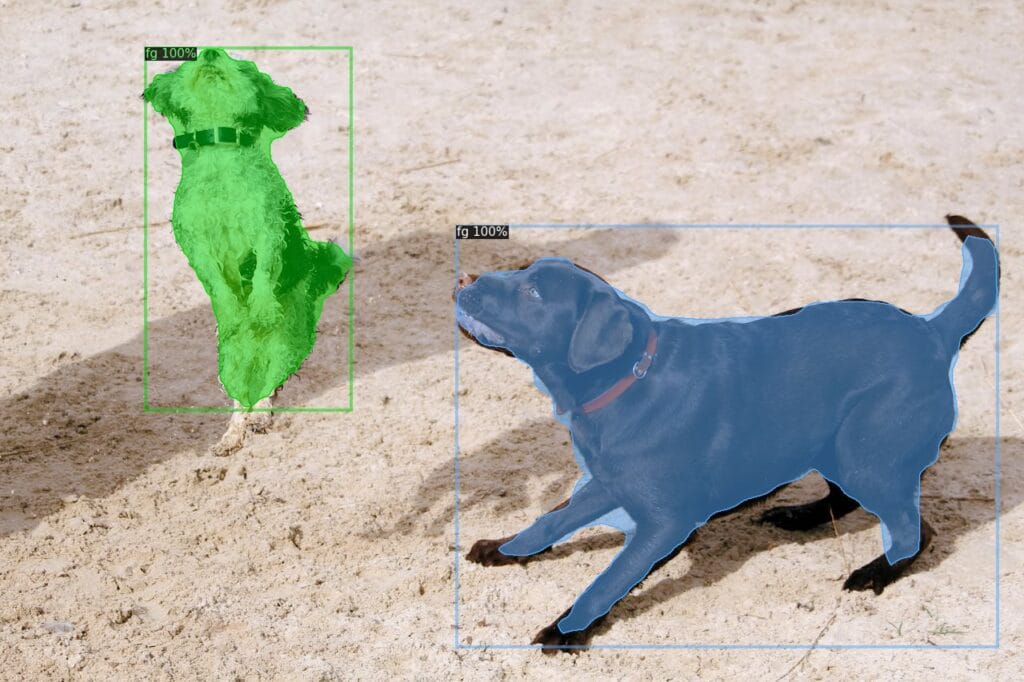
Okay, that was a brief introduction to CutLER, see you in another article