Physical Address
304 North Cardinal St.
Dorchester Center, MA 02124
Physical Address
304 North Cardinal St.
Dorchester Center, MA 02124

Before starting to learn deep learning, I checked Reddit for choosing between PyTorch and TensorFlow, and I saw the funniest thing ever. Two people were discussing about which one is better to start, and they were literally fighting each other. They both had own logical reasons. I followed all the discussion, and in the end, one more people joined it, and he said the funniest thing:
If I had chance to go 3 years before and start learning deep learning again, I would choose which one I can install with GPU support with fewer problem.
Creating a GPU-supported PyTorch environment can be a pain, especially for the first time; but using Docker, it is not that complex.
I already have article about how to create a GPU-supported PyTorch environment for windows os using miniconda, and now I will show you how to create a GPU-supported PyTorch environment in ubuntu.
# GPU-supported PyTorch environment with pip
pip3 install torch torchvision --index-url https://download.pytorch.org/whl/cu126
If you decide to follow this tutorial, you need few things:
Okay, lets start.
I already have GPU drivers installed on my ubuntu.
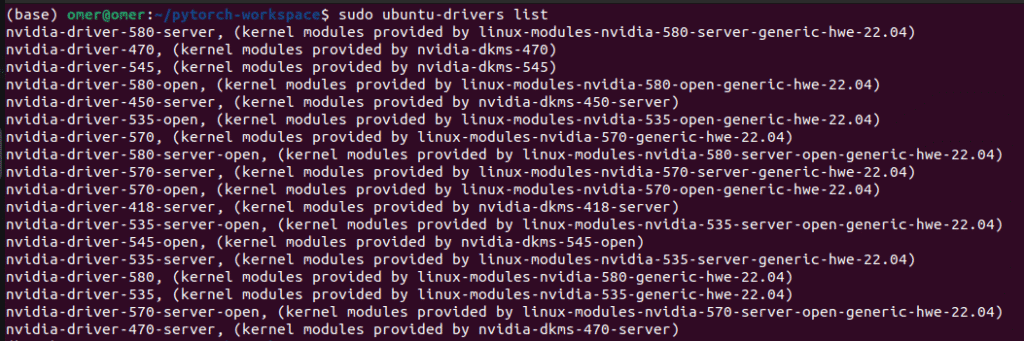
You can install drivers using following command:
sudo apt update
sudo ubuntu-drivers install
If you want specific drivers you can add driver name and version to the command:
If you just installed the drivers, you need to reboot your system. You can do it manually or use this command, and don’t forget to save the link to this article 🙂
sudo reboot
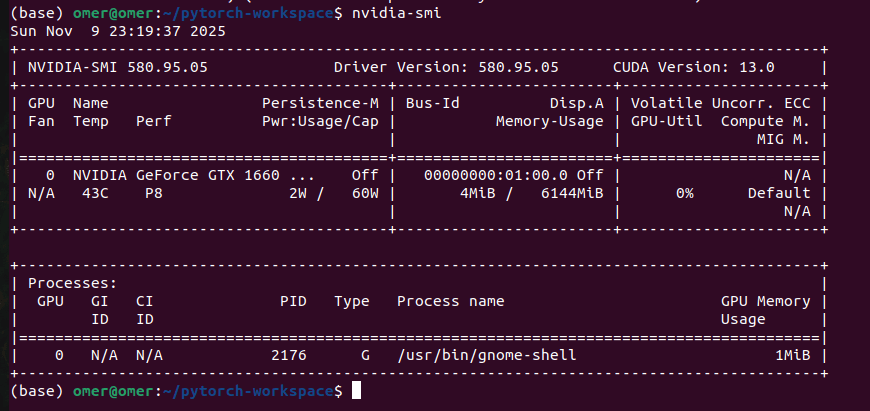
Now, verify the installation by using the nvidia-smi command in the terminal. These versions will change depending on your GPU and the time you installed the drivers.
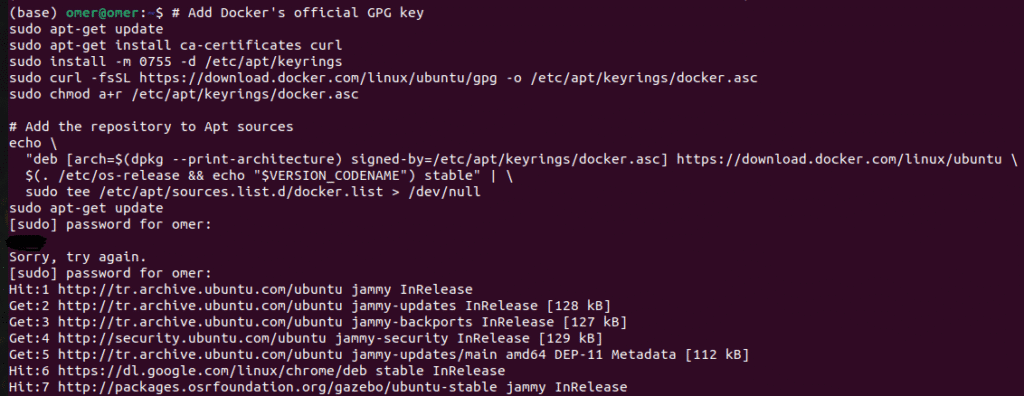
There are different methods for this step, but I will stick with Docker’s official repository. First, we need to set up Docker’s APT repository.
# Add Docker's official GPG key
sudo apt-get update
sudo apt-get install ca-certificates curl
sudo install -m 0755 -d /etc/apt/keyrings
sudo curl -fsSL https://download.docker.com/linux/ubuntu/gpg -o /etc/apt/keyrings/docker.asc
sudo chmod a+r /etc/apt/keyrings/docker.asc

# Add the repository to Apt sources
echo \
  "deb [arch=$(dpkg --print-architecture) signed-by=/etc/apt/keyrings/docker.asc] https://download.docker.com/linux/ubuntu \
  $(. /etc/os-release && echo "$VERSION_CODENAME") stable" | \
  sudo tee /etc/apt/sources.list.d/docker.list > /dev/null
sudo apt-get update
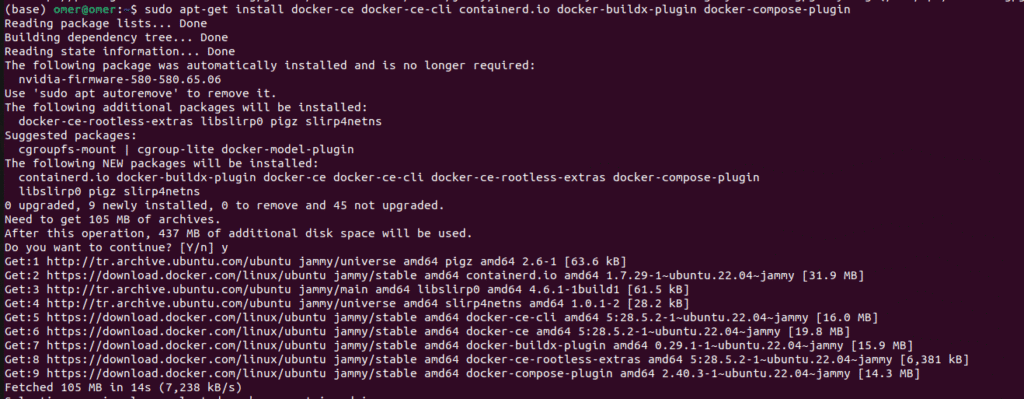
Now, lets install the Docker Engine.
sudo apt-get install docker-ce docker-ce-cli containerd.io docker-buildx-plugin docker-compose-plugin
This step is quite important: you need to add your user to the Docker group. This allows you to run Docker commands without sudo. After this step, you need to reboot again; otherwise, you will get errors in the next steps.
sudo usermod -aG docker $USER
reboot
This step connects Docker with your Nvidia Drivers.
Add the NVIDIA Container Toolkit repository:
curl -fsSL https://nvidia.github.io/libnvidia-container/gpgkey | sudo gpg --dearmor -o /usr/share/keyrings/nvidia-container-toolkit-keyring.gpg \
&& curl -s -L https://nvidia.github.io/libnvidia-container/stable/deb/nvidia-container-toolkit.list | \
  sed 's#deb https://#deb [signed-by=/usr/share/keyrings/nvidia-container-toolkit-keyring.gpg] https://#g' | \
  sudo tee /etc/apt/sources.list.d/nvidia-container-toolkit.list

Now, lets install the toolkit:
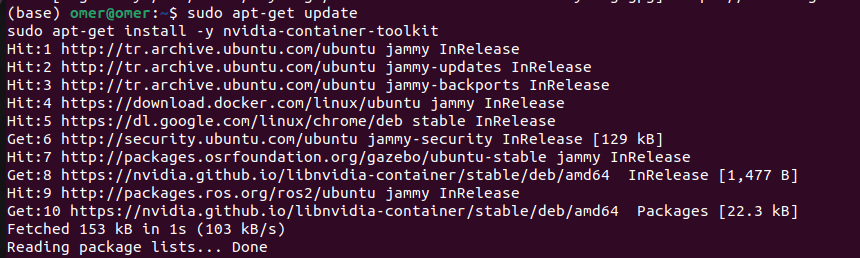
sudo apt-get update
sudo apt-get install -y nvidia-container-toolkit
Now, we need to restart Docker:
sudo systemctl restart docker
Okay, we are so close. Now, we need to pull the official PyTorch image. You can see all images on Docker Hub (link). If you get any errors (dependency issues, CUDA compatibility), you can try different versions.
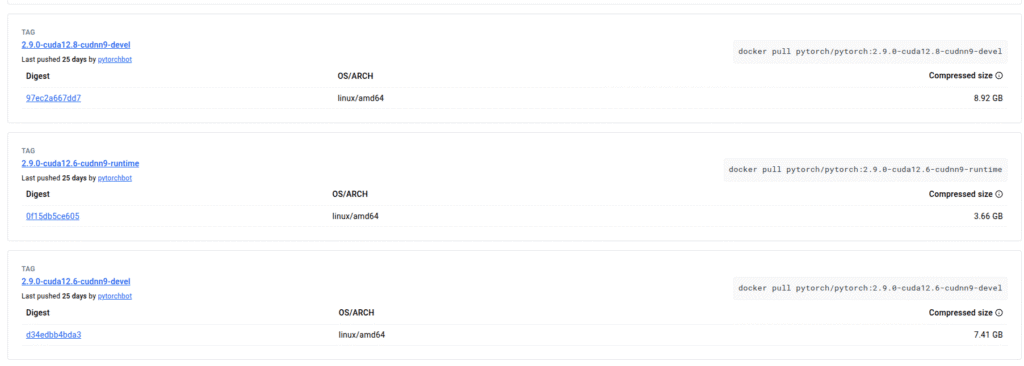
Even if you have a different CUDA version than that command, you can still continue. For example, I had CUDA 13.0 on my system, but I can create environments with CUDA 12.1 or 12.6. You can use a lower CUDA version than your system has.
docker pull pytorch/pytorch:2.3.0-cuda12.1-cudnn8-runtime
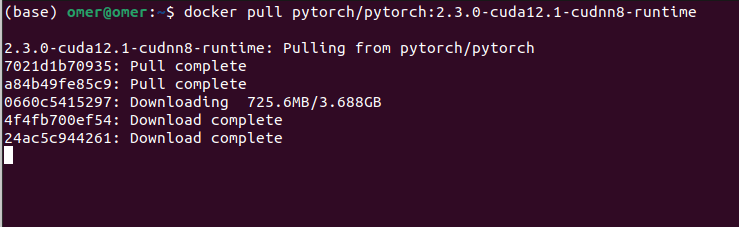
This might take some time depending on your connection.
Now, lets run the container:
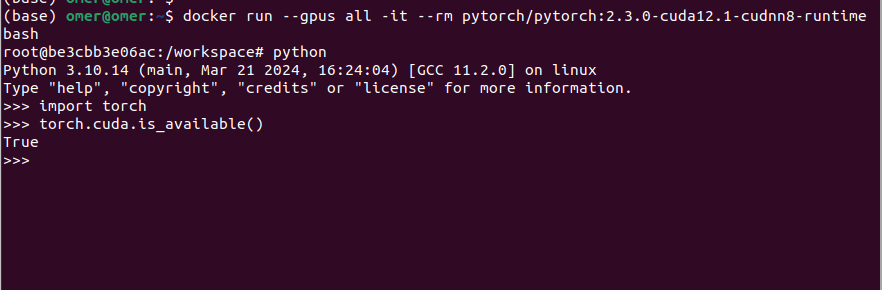
docker run --gpus all -it --rm pytorch/pytorch:2.3.0-cuda12.1-cudnn8-runtime bash
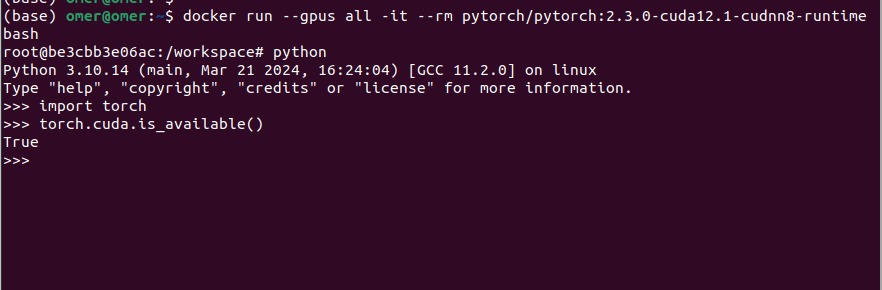
kay, hopefully you managed to complete all the steps without any errors. After running the container, type python in the command line. Let’s see if PyTorch is GPU-supported.
import torch
print(torch.cuda.is_available())
The output must be True; you can see the image above.
Okay, but how are we going to write our code? Do we have to write it in the terminal every time? Hell no. Most of the time, you will have hundreds of files. Now, I will show you how to create a workspace. We are not going to install anything else; we only need to add a few more files.
We need to add few more files:
Dockerfile basically contains information about images, containers, and other files (Python files, requirements.txt).
You will have multiple libraries for different projects, and the requirements.txt file saves all the information about these libraries.
You can create any number of Python files with any name; it doesn’t matter. You only need to add some of these Python files to the Dockerfile, and I will show you this in a minute.
Now, open a terminal and create a folder; you can name it whatever you want. We will create all of these files inside this folder:
mkdir pytorch-workspace
cd pytorch-workspace
Let’s create the files that I mentioned before:
touch Dockerfile
touch requirements.txt
touch test.py
Depending on your image and file names, you might need to change some of the lines. I explained all the lines with comment lines; I hope it makes sense.
# Use the official PyTorch image as our base
FROM pytorch/pytorch:2.3.0-cuda12.1-cudnn8-runtime

# Set the working directory inside the container
WORKDIR /app

# Copy your requirements file
COPY requirements.txt .

# Install any additional Python packages
# This will use the container's pre-installed pip
RUN pip install -r requirements.txt

# Copy the rest of your local project files into the container's /app directory
COPY . .

# Define the default command to run when the container starts
# This will execute: python3 test.py
CMD ["python3", "test.py"]
For this demo, I will only use the PyTorch library, so my requirements.txt file only contains torch :). You can add as many libraries as you want; just be careful about versions.
torch
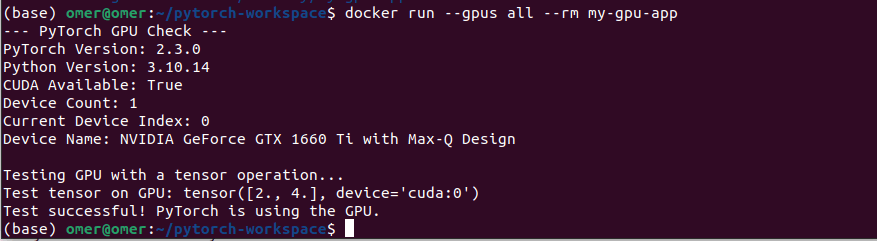
You can change the code. test.py basically checks if PyTorch sees my GPU, prints the PyTorch version, and other information about the GPU.
import torch
import sys

def check_gpu():
    print("--- PyTorch GPU Check ---")
    print(f"PyTorch Version: {torch.__version__}")
    print(f"Python Version: {sys.version.split()[0]}")

    # Check if CUDA (GPU support) is available
    is_available = torch.cuda.is_available()
    print(f"CUDA Available: {is_available}")

    if not is_available:
        print("\n[Warning] PyTorch cannot detect a GPU. Running on CPU instead.")
        return

    # Get GPU details
    device_count = torch.cuda.device_count()
    current_device = torch.cuda.current_device()
    device_name = torch.cuda.get_device_name(current_device)

    print(f"Device Count: {device_count}")
    print(f"Current Device Index: {current_device}")
    print(f"Device Name: {device_name}")

    # Simple tensor operation on the GPU
    print("\nTesting GPU with a tensor operation...")
    # Move a tensor to the GPU
    x = torch.tensor([1.0, 2.0]).to("cuda")
    # Perform an operation
    y = x * 2
    print(f"Test tensor on GPU: {y}")
    print("Test successful! PyTorch is using the GPU.")

if __name__ == "__main__":
    check_gpu()
You can change the name my-gpu-app. In the end, there is one dot; it tells Docker to use the Dockerfile in the current directory.
docker build -t my-gpu-app .
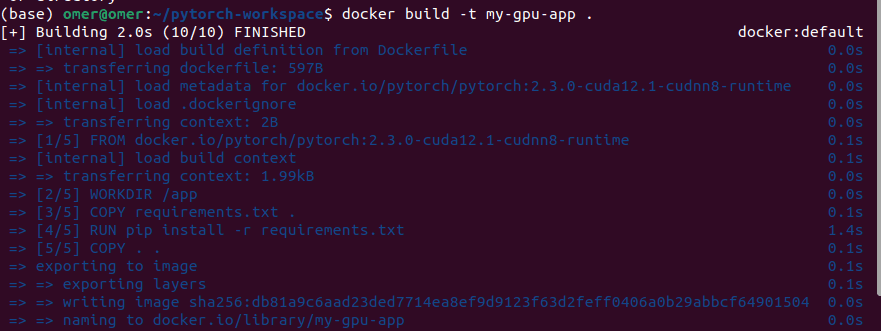
Okay, now it is time for running:
docker run --gpus all --rm my-gpu-app
Okay, that’s it from me. You might get errors at some parts, feel free to ask me any question. My mail adress is → siromermer@gmail.com