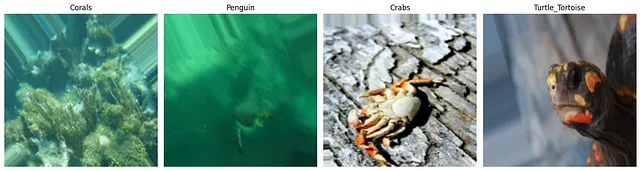
QWEN is a family of LLMs developed by Alibaba's Qwen team. Some Qwen models are text-only, but there are also VLMs that can understand images, videos and generate meaningful outputs. It can describe the image, count the objects, or reason between text and image. There are a lot of powerful AI models out there; but most of them are not open-source. So you either have to pay, or use them with limitations. But QWEN models are open-source, so you can download the weights, and run them locally. And another great thing is they are released under the Apache 2.0 license; so you can use them commercially as well.
In this article, I will show how to create a proper environment for running QWEN-VL models on local via HuggingFace. And show how to use any QWEN models on local such as Qwen3-VL-2B-Instruct VLM.
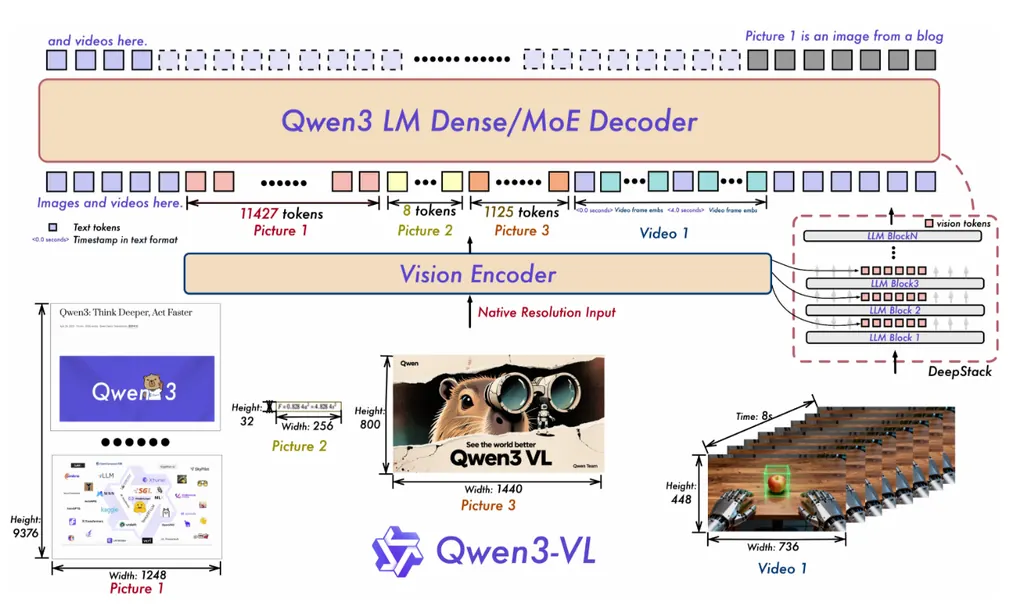
Qwen3-VL-2B-Instruct architecture [src]
As you can see from the image, image encoder can process more than one frame at a time. This could be a video, or multiple images related or not.
Prompts (input texts) are first split into tokens using byte-level byte-pair encoding (BBPE). Then, these tokens are converted into embeddings. So tokens are represented in high dimensional spaces, so different embeddings can relate with each other, and model can reason between related words. It is important to make connection between words to understand the overall context.
This article is not about how QWEN models work, it is about how to create a proper env and run models on local. So if you want to learn more about these models, you can check papers. In this article, I will use Qwen3-VL-2B-Instruct, you can find its paper from here.
Also, I have a YouTube video about this article, you can watch it.
Create a GPU Environment for Qwen3-VL
Okay, let's start with creating the environment. I will use Miniconda, but you can use venv as well. My GPU is GTX 1660 Ti Max-Q (6 GB VRAM), so I will show a setup that works on limited VRAM. Depending on your GPU inference time will be changed.
First, create a conda environment:
conda create -n qwen3-vl python=3.11 -y
conda activate qwen3-vl
Now install PyTorch with CUDA support. I used CUDA 12.6:
pip install torch torchvision --index-url https://download.pytorch.org/whl/cu126If you don't have a GPU, you can still install normal PyTorch and run on CPU, but you need enough free RAM (the 2B weights alone are about 4 GB), and it will be much slower. For this article I assume you have a GPU.
Next, install Transformers and a few more packages. I recommend installing Transformers from GitHub, because Qwen3-VL support is newer:
pip install "git+https://github.com/huggingface/transformers"
pip install accelerate pillow jupyter ipykernel huggingface_hub
You can verify CUDA like this:
import torch
print(torch.__version__, torch.cuda.is_available())
If it prints True, you are good to go.
Download Model Weights
You can download the model from HuggingFace, model is around 5 GB:
There are bigger Qwen3-VL models as well (4B, 8B, ...). I chose the 2B Instruct model because of my old GPU. You can download it with huggingface-cli, or from the website.
Example:
huggingface-cli download Qwen/Qwen3-VL-2B-Instruct --local-dir ./checkpoints/Qwen3-VL-2B-InstructAfter download, your folder should look like this:
checkpoints/Qwen3-VL-2B-Instruct/
  model.safetensors
  config.json
  tokenizer.json
  preprocessor_config.json
  ...
Okay, now we can run the model.
Run Qwen3-VL Locally with HuggingFace
I created a notebook for this. The idea is simple: load the local checkpoint, give an image + text prompt, and print the answer.
First, import the libraries and load the model (don't forget to change paths):
import torch
from transformers import AutoProcessor, Qwen3VLForConditionalGeneration

model_path = "../checkpoints/Qwen3-VL-2B-Instruct"
image_path = "../assets/dogs.jpg"

model = Qwen3VLForConditionalGeneration.from_pretrained(
    model_path,
    dtype=torch.float16,       # half precision; saves VRAM on 6 GB GPUs
    device_map="auto",         # place layers on available GPU
    max_memory={0: "3500MiB", "cpu": "20GiB"},  # keep some VRAM free
    local_files_only=True,     # do not download from Hub
)

processor = AutoProcessor.from_pretrained(
    model_path,
    max_pixels=384 * 28 * 28,  # cap image size / vision tokens (VRAM)
    local_files_only=True,
)
A few important notes:
dtype=torch.float16is important if your VRAM is limited.device_map="auto"lets HuggingFace put some layers on GPU and some on CPU if needed.max_pixelscontrols how big the image tokens can be. If you get CUDA out of memory errors, decrease this value.local_files_only=Truemeans we use the local weights. If you set this to False, it will download the model file.
Now, let's create the prompt and run inference:
messages = [{
    "role": "user",
    "content": [
        {"type": "image", "image": image_path},
        {"type": "text", "text": "What's in this image?"},
    ],
}]

inputs = processor.apply_chat_template(
    messages,
    tokenize=True,              # return token ids
    add_generation_prompt=True, # append assistant turn for generation
    return_dict=True,           # BatchEncoding (ids, pixels, ...)
    return_tensors="pt",        # PyTorch tensors
)
inputs = {k: (v.to(model.device) if hasattr(v, "to") else v) for k, v in inputs.items()}  # move tensors to GPU

with torch.inference_mode():  # no autograd; lower memory
    out = model.generate(**inputs, max_new_tokens=128)  # max answer length

new_tokens = out[:, inputs["input_ids"].shape[1]:]  # drop prompt tokens
print(processor.batch_decode(new_tokens, skip_special_tokens=True)[0])
And this is the output I got:
This image shows a group of dogs in a grassy field, likely in a park or a rural area.
The dogs are of various breeds and colors, including black, brown, and tan, and appear
to be walking away from the camera. The setting is a natural, open area with trees and
bushes in the background, suggesting a peaceful, outdoor environment.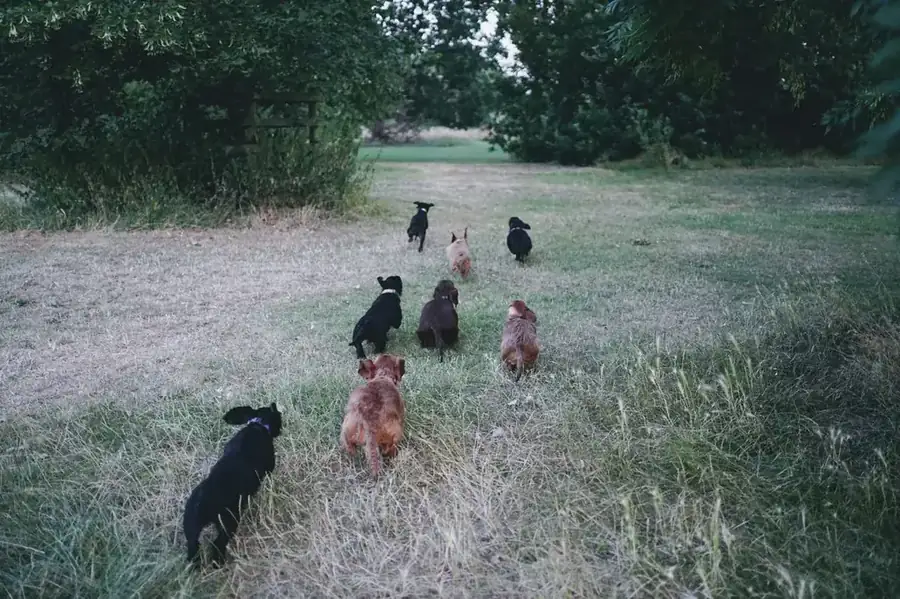
Qwen3-VL describing a group of dogs in a field [img]
Not bad. It understood the scene correctly.
Another Example: Asking About Color
Let's try another image and a more specific question.
image_path = "../assets/blue_car.jpg"

messages = [{
    "role": "user",
    "content": [
        {"type": "image", "image": image_path},
        {"type": "text", "text": "Describe the car in this image. What color is it?"},
    ],
}]
The rest of the code is the same. Output:
The car in the image is a blue BMW 3 Series. It appears to be a 330i model, as indicated
by the front grille design and the overall proportions of the vehicle. The car is a sedan
with a sleek, modern design. It has a black alloy wheel and a black side mirror. The car
is parked on a paved surface with trees and grass in the background.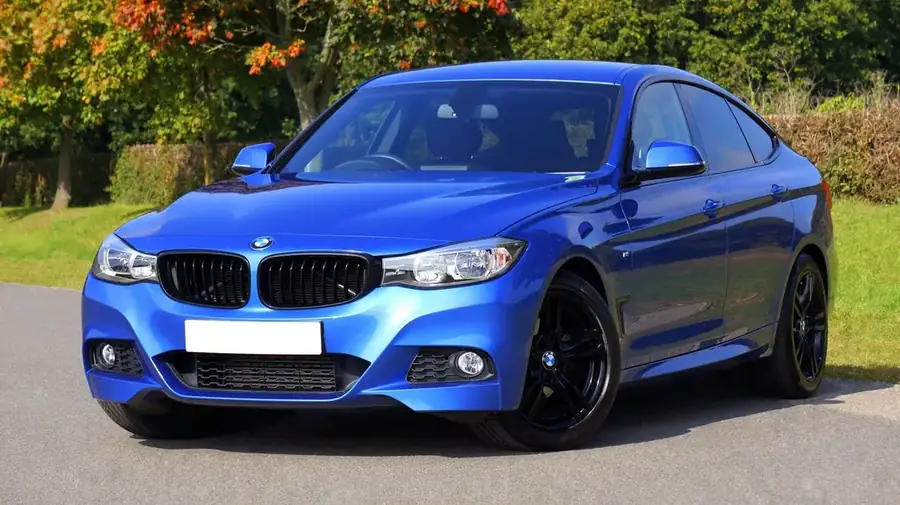
Qwen3-VL describing a blue BMW sedan [img]
It not only said the color, it also guessed the brand/model. That is the nice part of VLMs; one model can do captioning and visual question answering with the same code. It answered the question and explained the image.
One More Example: Kitchen Scene
image_path = "../assets/kitchen.jpg"

messages = [{
    "role": "user",
    "content": [
        {"type": "image", "image": image_path},
        {"type": "text", "text": "Describe this kitchen scene briefly. What objects do you see?"},
    ],
}]
Output:
This is a bright, modern kitchen with a large central island and white cabinetry.
The countertops are a light, smooth material, possibly quartz or marble, and the
backsplash is made of gray, textured tiles. There are three pendant lights hanging
above the island, and the cabinets are a crisp white with a sleek, minimalist design.
The island is equipped with a modern, gooseneck faucet and has a black, cushioned stool
at its base. A stainless steel range hood is visible above the stove, and the kitchen
has a large window with a view of a garden.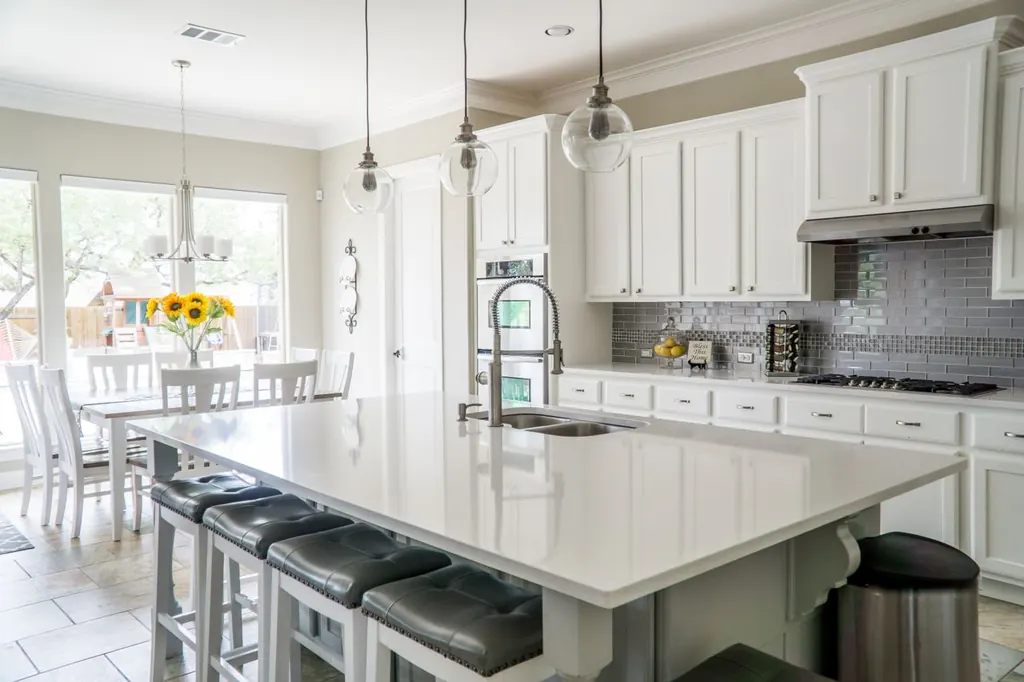
Qwen3-VL describing a modern kitchen interior [img]
Cat Example (Simple VQA)
image_path = "../assets/cat.jpg"

messages = [{
    "role": "user",
    "content": [
        {"type": "image", "image": image_path},
        {"type": "text", "text": "What animal is this, and what color is it?"},
    ],
}]
Output:
Based on the visual details in the image, the animal is a kitten.
The color of the kitten is a light cream or off-white with light brown or tan markings
on its fur... The kitten has very large, bright blue eyes and a soft, fluffy appearance.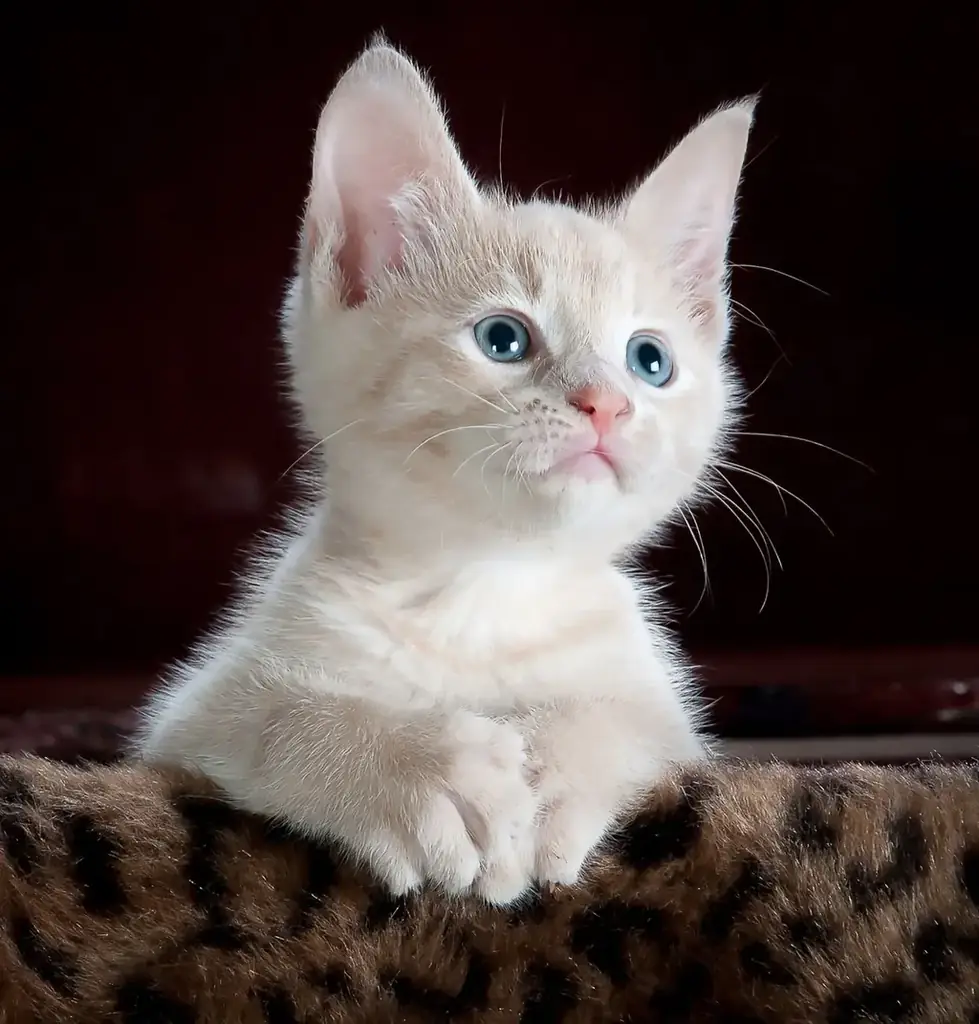
Qwen3-VL answering a simple cat VQA prompt [img]
Tips for Low VRAM GPUs
If you get CUDA OOM (out of memory) errors, try these:
- Use
float16(orbfloat16if your GPU supports it) - Decrease
max_pixels(for example256 * 28 * 28) - Use
max_memory={0: "3500MiB", "cpu": "20GiB"}so some layers stay on CPU - Use a smaller model like Qwen3-VL-2B instead of 8B
On my GTX 1660 Ti, this setup worked. Loading is a bit slow because some layers are offloaded to CPU, but inference is okay for demos.
Okay, that's it from me, see you in another article :)