Physical Address
304 North Cardinal St.
Dorchester Center, MA 02124
Physical Address
304 North Cardinal St.
Dorchester Center, MA 02124

SAM3 is just announced, and everybody is talking about it. But what is this hype all about? As you probably know from before, all the SAM models (SAM, SAM2) were promptable models, and till now SAM and SAM2 expected positional information as input, it can be a point, bounding box, positive and negative points. But SAM3 is different, besides positional input, it works with text prompts as well. Text prompt can be like ‘man with white coat’, ‘ugly cat’, and any other text input. SAM3 works with images just like SAM, and works with videos just like SAM2. In this article, I will give you an introduction to SAM3; creating the environment, running demos, segmenting objects with text prompts on images.
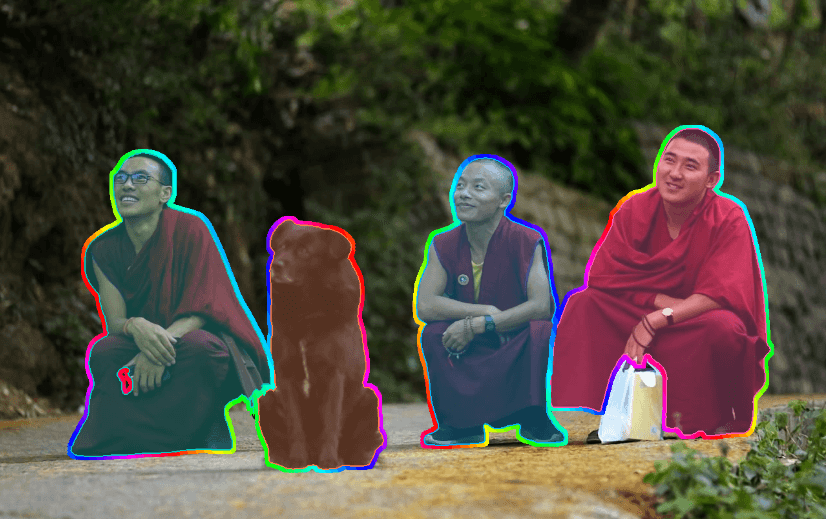
My favorite thing about SAM family (since first release, 2023) is that when they release a new model, they allow you to experience the model from the web. And this applies for SAM3 as well, they created an introduction demo for you to experiment with the model, and I will start with that.
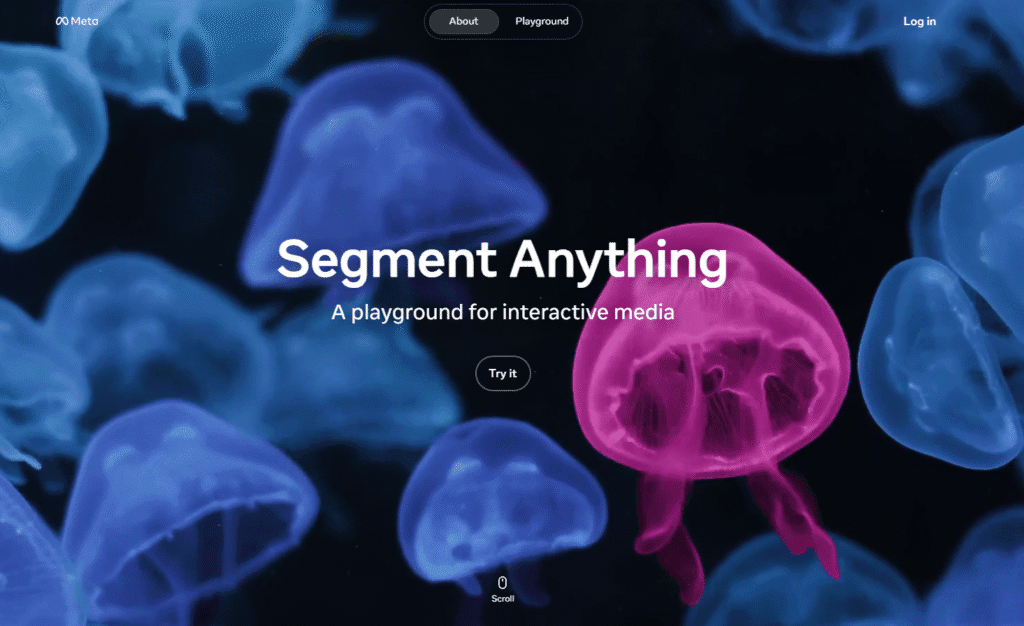
There are different demos for both working on videos and images, you can see the image below. You can upload your own videos and images, or use a sample video or image from SAM gallery.
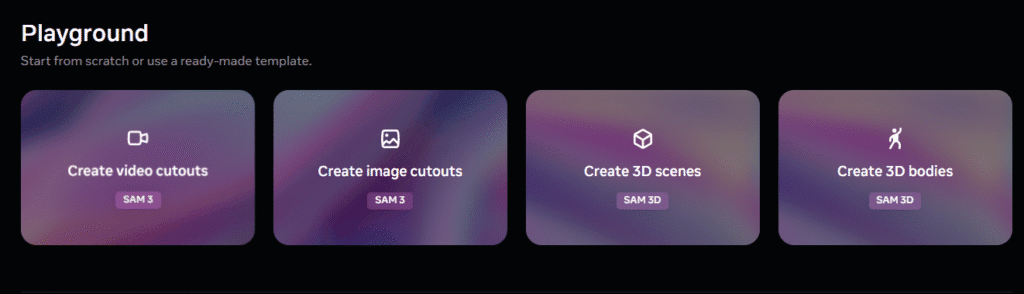
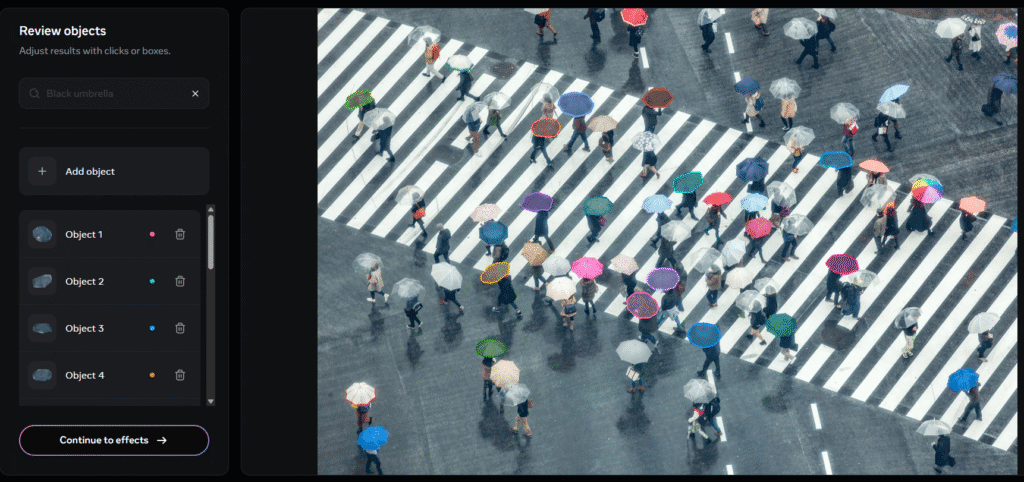
First two demos are for segmenting objects with text prompts on images and videos. Text prompt can be a word or a sentence. For example, in the below image my prompt (top left) was “black umbrella”.
Next two demos are for creating 3D models of specific objects using SAM3D (I will write an article about SAM3D later). First, the user clicks the target object, then the model performs segmentation. From that segmented object, a 3D model is created, and you can play with that 3D model. You can see the 3D model of a segmented boat.
Another demo is for creating 3D models of people. Again, you can move the model around since it is a 3D model. And it supports multiple people in a scene.
It is so fun, right? And there are a lot of demos that you can play with . If you want to see other demos, you can check the SAM playground.
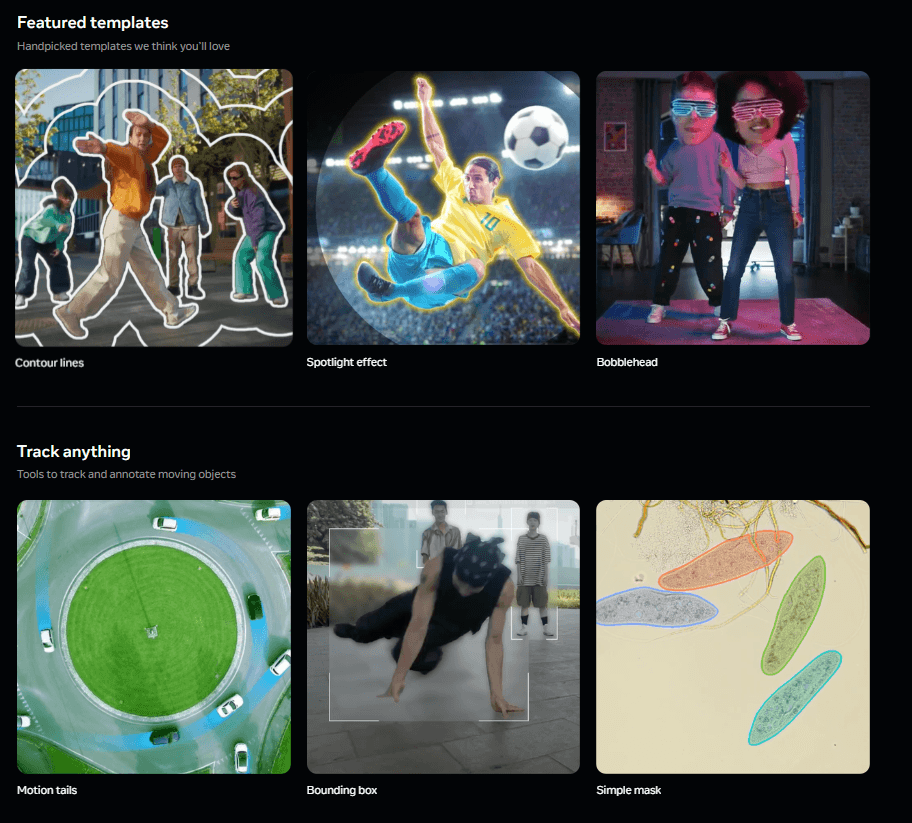
Okay, if I continue to show you demos, it will be a veeeery long article. It is time to talk about creating the environment, SAM3 models, and to show you how you can segment objects with text prompts on images and videos using Python.
You saw the demos, and you can agree that SAM3 is a very powerful model. Running these models requires a lot of computing power, and we have to take advantage of GPUs for computing. So, if you want to run SAM3 models on your local machine, you need to have a GPU-supported environment.
You need to create a GPU-supported PyTorch environment. Now, I will give you step-by-step commands for SAM3 installation.
First, let’s create Conda environment.
conda create -n sam3-env python=3.12
conda activate sam3-env
Now, install PyTorch with GPU-support. If you encounter any issues related to PyTorch, you can follow the below article. After you install PyTorch, you can test it with torch.cuda.is_available()
pip install torch==2.7.0 torchvision torchaudio --index-url https://download.pytorch.org/whl/cu126

torch.cuda.is_available()Now, clone the repository and install the package:
git clone https://github.com/facebookresearch/sam3.git
cd sam3
pip install -e .
If you want to run example notebooks in repository, run these lines as well:
# For running example notebooks
pip install -e ".[notebooks]"

# For development
pip install -e ".[train,dev]"
Okay, now that installation is finished, and it is time for downloading the models.
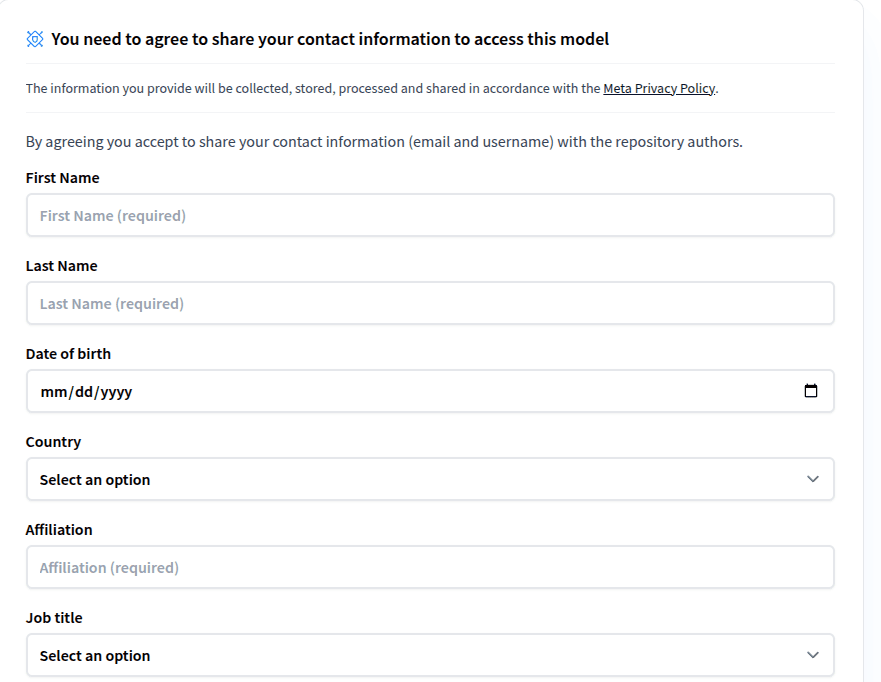
You can’t directly download the models. You have to accept the agreements, and request access. You can see the image below, I took it directly from the SAM3 GitHub repository.

There are two different links that you should follow, and the whole process takes 2–3 minutes.
Accept the agreement and fill the form (SAM 3 Hugging Face repo)
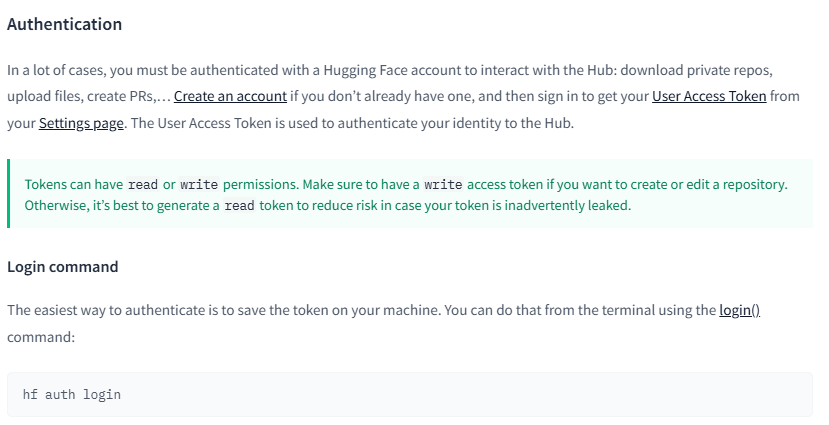
For downloading models, create token and login from terminal (Hugging Face Authentication doc). Just follow the documentation, this will take about 1 minute 🙂
Now that you have a proper environment and access to the models, it is time for coding. I created a new Jupyter notebook inside the SAM3 repository that I cloned. First, let’s import libraries.
import os
import matplotlib.pyplot as plt
import numpy as np

import sam3
from PIL import Image
from sam3 import build_sam3_image_model
from sam3.model.sam3_image_processor import Sam3Processor
from sam3.visualization_utils import plot_results
Let’s load the SAM3 model.
If your access is requested and it is approved but you didn’t download the models, the build_sam3_image_model function will download the model automatically. You can see this inside model_builder.py file.

bpe_simple_vocab_16e6.txt.gz: Byte Pair Encoding tokenizer vocabulary file. Used to convert text prompts into tokens.
# Get SAM3 root path (parent directory of sam3 package)
sam3_root = os.path.join(os.path.dirname(sam3.__file__), "..")

# Load BPE vocabulary path
bpe_path = f"{sam3_root}/assets/bpe_simple_vocab_16e6.txt.gz"

# Build the SAM3 model
model = build_sam3_image_model(bpe_path=bpe_path)

# Create processor with confidence threshold
processor = Sam3Processor(model, confidence_threshold=0.5)
Now lets read the image and define a text prompt:
# Load your image (replace with your image path)
image_path = "test_image.jpg"
image = Image.open(image_path)
Let’s run the model. You can get the binary map (“masks”), confidence scores (“scores”), and bounding box coordinates (“boxes”) using inference_state.get() method. And it is good practice to use processor.reset_all_prompts() method before every prompt to clear past information.
# Set image for inference
inference_state = processor.set_image(image)
processor.reset_all_prompts(inference_state)
# Set text prompt
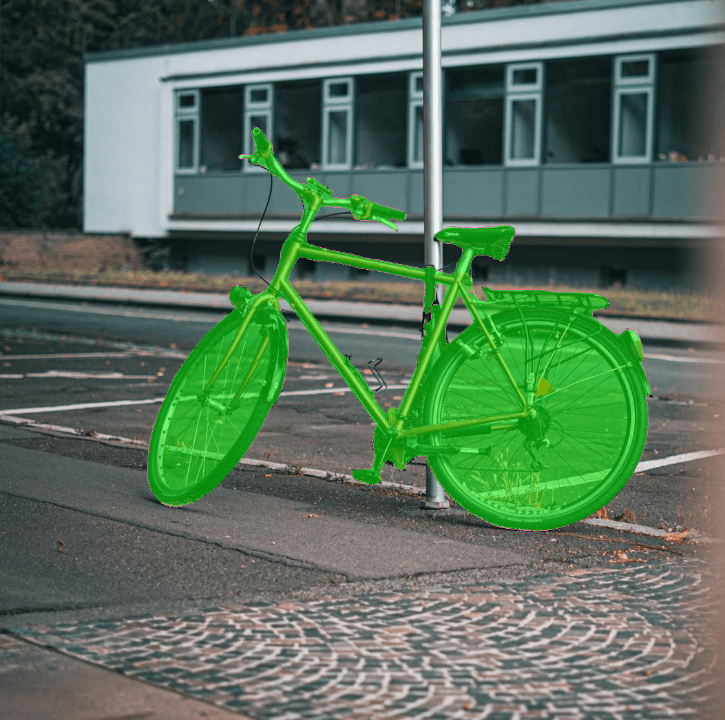
inference_state = processor.set_text_prompt(state=inference_state, prompt="bicycle")

# N stands for the number of predicted objects (masks)
# Shape: [N, 1, H, W] - Binary masks
masks = inference_state.get("masks")
# Shape: [N] - Confidence scores
scores = inference_state.get("scores")
# Shape: [N, 4] - Bounding boxes [x0, y0, x1, y1]
boxes = inference_state.get("boxes")
You can directly use the plot_results function for displaying the result, or you can loop through the masks, scores, and boxes and display them depending on what you want to see(mask, label, confidence).
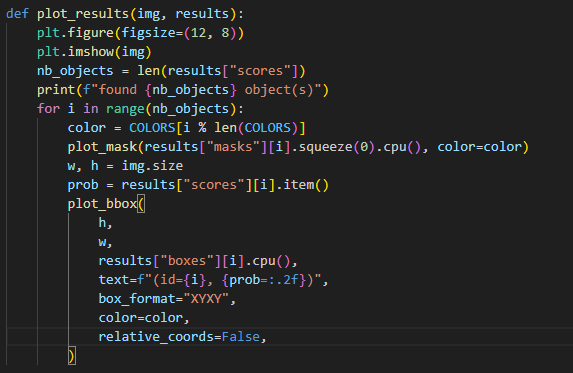
# Visualize the segmentation results
img_display = Image.open(image_path)
plot_results(img_display, inference_state)
Okay, that’s it from me. I hope you liked it, and if you have any questions, feel free to ask me (siromermer@gmail.com)