Physical Address
304 North Cardinal St.
Dorchester Center, MA 02124
Physical Address
304 North Cardinal St.
Dorchester Center, MA 02124

U2SEG is the first unsupervised approach to combine instance, semantic, and panoptic segmentation. It uses MaskCut algorithm from CutLER to create instance segmentation masks and clusters similar objects into the same IDs with K-means algorithm. For creating semantic segmentation masks, STEGO is used. Then these masks are combined.
In this way, the model creates its own dataset without any human supervision. Since this is an unsupervised model, the labels are pseudo labels. Using these labels, a Panoptic Cascade Mask R-CNN model is trained. The model is trained using these pseudo labels, but during evaluation, the authors used Hungarian matching to generate real labels.
In this article, I will explain how U2SEG works, how to create the environment, and how to run U2SEG models.
A few steps construct this pipeline:
Now, I will explain these steps one by one.
CutLER uses the MaskCut algorithm to generate “things” (instance segmentation) masks. First, a pre-trained self-supervised Vision Transformer (DINO) extracts features from an image. Then, a patch-wise affinity (similarity) matrix is generated from these features.
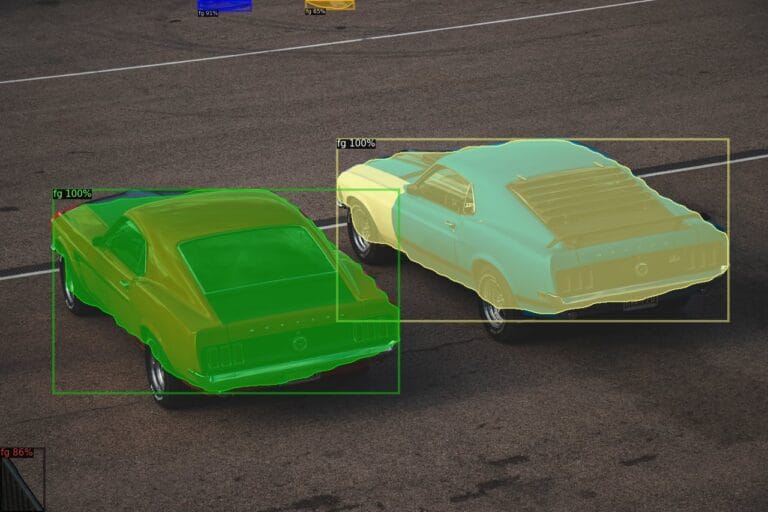
The Normalized Cut algorithm is applied to this similarity matrix iteratively. In the end, we get class-agnostic instance masks. Basically, “class-agnostic” means the masks don’t have any specific classes; all masks are simply classified as “foreground” objects. Check the example below, there are two masks, and both of them are classified as “foreground”.
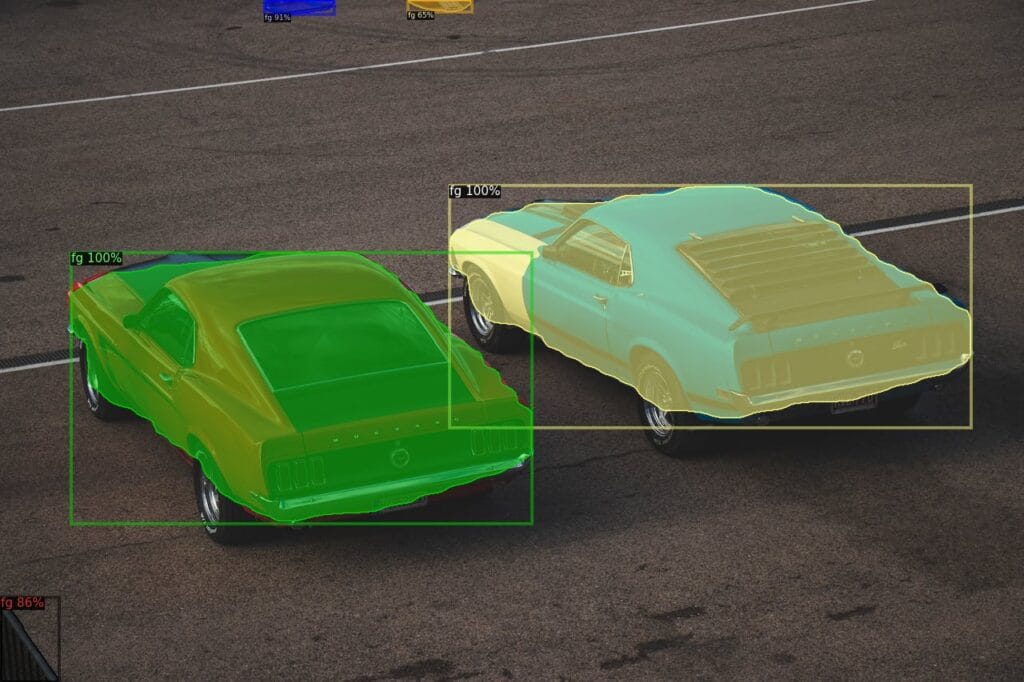
This doesn’t give any info about the classes. All we got are masks with no class information. If you want to learn more about CutLER, I had a article about it:
In this step, pseudo labels are created. These labels are not real labels like “car”, “person”, or “ball”. The purpose of this part is to cluster similar objects into the same IDs using the features extracted by DINO. Depending on the predefined cluster number(300,800), IDs are assigned to each mask.
It is worth the mention that the K-Means algorithm is applied to the entire dataset at once, and in this way, similar objects will have the same IDs even in the different images. After this step, labels will be like:
But of course, some objects will be misclassified, and some IDs won’t be accurate because this is an unsupervised method.
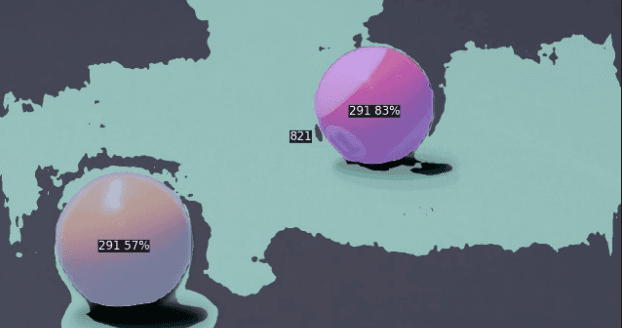
See the example below, both balls have the same ID (291).
In step 1, the model discovered “things” (foreground masks). This step is to label the background pixels that step 1 ignored, meaning “stuffs”. Regions like grass, sky, and roads.
STEGO uses DINO(used as a backbone) with a lightweight segmentation head. It distills DINO features into discrete semantic labels using correspondence loss, so similar textures get the same label ID.
This is a self-supervised process, there is teacher and student model.
By optimizing correspondence loss, STEGO learns to group pixels into clusters. Here output is a dense semantic map; every pixel has a semantic label, but individual instances are merged.
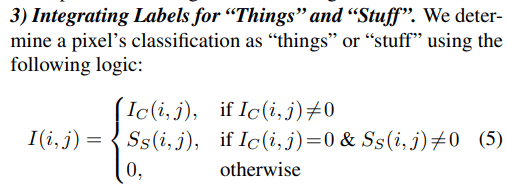
From the first 3 steps, masks are generated for things and stuff. But how are these combined? Things labels are prioritized, meaning if there is an instance label on some region, it is directly classified as a thing. If there is not, it is classified as stuff(background). You can see the formula from the image. I got it from U2SEG’s paper:
In the first 4 steps, the dataset is created. The authors used Panoptic Mask R-CNN with a ResNet50 backbone. By the way, they trained on unlabeled ImageNet. By training on these pseudo-labels, the model can perform instance, semantic, and panoptic segmentation.
You need to install Detectron2 and PyTorch to reproduce results and run models. The requirements are as follows:
First, install PyTorch with GPU support. You can try to run models on CPU as well, but I didn’t try it. Change this line depending on your CUDA version. If you encounter any errors, you can follow my other article about the installation of PyTorch with GPU support(link).
pip3 install torch torchvision --index-url https://download.pytorch.org/whl/cu126
Clone the U2SEG repository, and run:
git clone https://github.com/u2seg/U2Seg.git

cd ./U2Seg
pip install -e .
There are few more helper libraries:
pip install pillow==9.5
pip install opencv-python
pip install git+https://github.com/cocodataset/panopticapi.git
pip install scikit-image
Now, let me show you how to run U2SEG models.
First, you need to download models. The authors shared a Google Drive link that contains checkpoint files; you can download it (Drive).
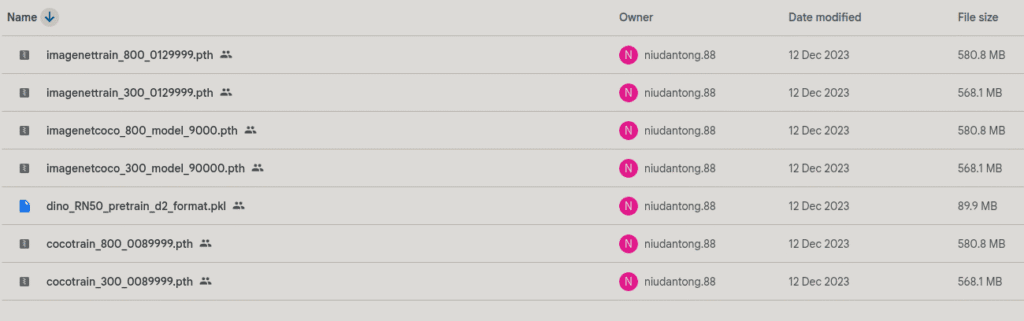
I downloaded cocotrain_300_0089999.pth. By the way, 300 and 800 refer to cluster numbers. So, my instance segmentation IDs will be in the range [1-300].
For running models on images, you should customize the configuration file. Depending on the cluster number, you can choose u2seg_eval_300.yaml or u2seg_eval_800.yaml file.
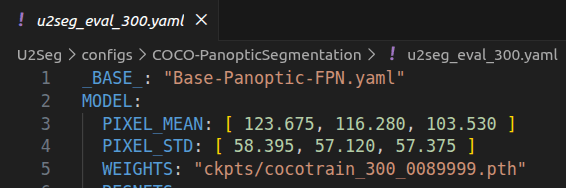
You have to change WEIGHTS line inside config file.
For testing the model, you can directly use the demo/u2seg_demo.py file. Activate your environment from the terminal, go to the cloned repository, and run this line:
python ./demo/u2seg_demo.py --config-file configs/COCO-PanopticSegmentation/u2seg_eval_300.yaml --input test_image.jpg --output results/demo
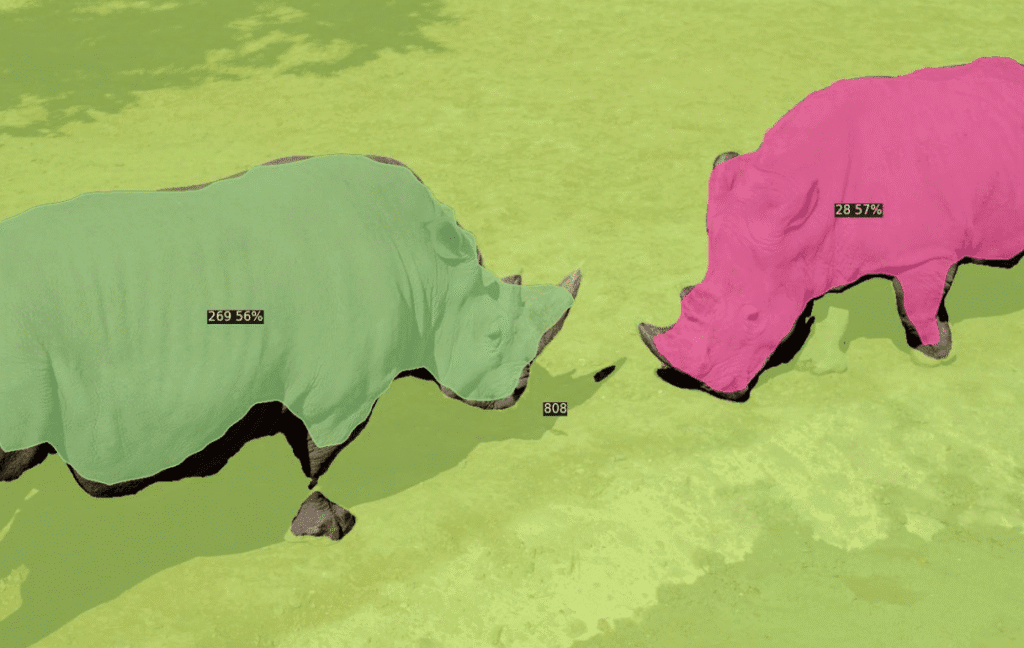
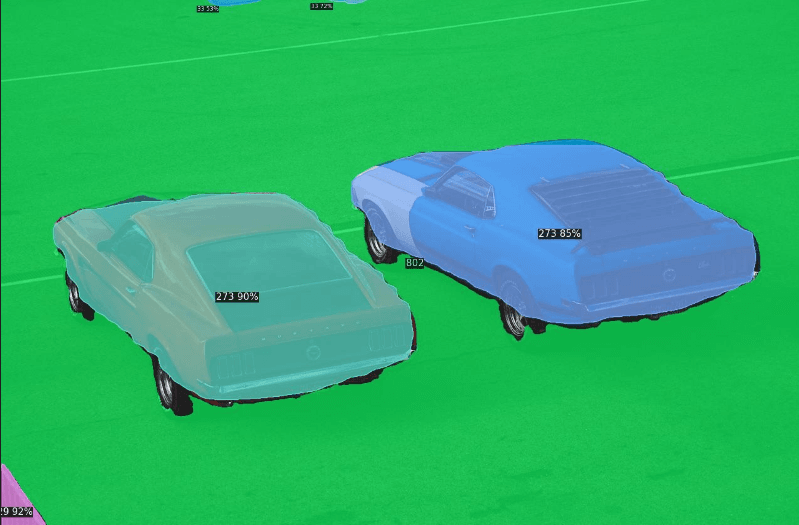
As you can see from the image, instance masks ID’s are in between 1 and 300 as expected. And background masks start from 800.
You don’t have to use U2SEG models like this; you can use U2SEG models by loading the model and calling the necessary functions. First, let’s import a few libraries:
import sys
import os
import glob
import cv2
import numpy as np
from detectron2.config import get_cfg
from detectron2.data.detection_utils import read_image
sys.path.insert(0, '/home/omer/vision-ws/u2seg-ws/U2Seg/demo')
from predictor import VisualizationDemo
Set up the configuration:
# Set up configuration
cfg = get_cfg()
# Load a config file for U2Seg model
cfg.merge_from_file('configs/COCO-PanopticSegmentation/u2seg_eval_300.yaml')
# Set threshold values
cfg.MODEL.RETINANET.SCORE_THRESH_TEST = 0.25
cfg.MODEL.ROI_HEADS.SCORE_THRESH_TEST = 0.25
cfg.MODEL.PANOPTIC_FPN.COMBINE.INSTANCES_CONFIDENCE_THRESH = 0.25
cfg.freeze()
# Initialize the visualization demo
demo = VisualizationDemo(cfg)
Now, let’s run the model and visualize the result:
# Process and display a single image
import torch
from IPython.display import Image, display
import tempfile

# Specify input image path
image_path = 'car.jpg'

# Run inference
img = read_image(image_path, format="BGR")
with torch.no_grad():
    predictions, visualized_output = demo.run_on_image(img)

# Save to temporary file and display
with tempfile.NamedTemporaryFile(suffix='.jpg', delete=False) as tmp:
    visualized_output.save(tmp.name)
    display(Image(tmp.name, width=800))
Both car has same ID(273), perfect.
Okay, that’s it from me. See you in another article, have fun 🙂